


Few things are more frustrating than updating your design in Elementor, clicking Update, and seeing absolutely nothing change on the live page. Fonts stay the same. Colors don’t update. Spacing looks stuck.
If this sounds familiar, don’t worry. This is one of the most common issues users face with Elementor on WordPress, and it’s almost always caused by caching or optimization conflicts rather than a bug.
Elementor generates CSS files dynamically for performance. But when old versions of those files are cached by your browser, plugins, server, or CDN, your new styles never get served to visitors.
The good news? You can usually fix it in just a few minutes.
In this complete guide, you’ll learn the exact steps to fix it quickly, from simple refreshes to advanced troubleshooting.
How to Fix “Elementor CSS Not Updating Issue” (Complete Guide)
Let’s walk through the complete step-by-step solution.
Step 1—Regenerate Elementor CSS & Data (Most Important Fix)
This should always be your first move because it solves the majority of cases.
How to do it:
- Go to Dashboard → Elementor → Tools
- Click Regenerate CSS & Data
- Click Sync Library
- Refresh your page
This forces Elementor to rebuild fresh CSS files from scratch.
Step 2—Hard Refresh Your Browser
Your browser may simply be loading an old cached file.
Try:
- Windows: Ctrl + Shift + R
- Mac: Cmd + Shift + R
- Open the page in Incognito/Private mode
If the changes show in Incognito, it’s definitely a browser cache issue.
Step 3—Clear WordPress Cache Plugins
Caching plugins are one of the biggest causes of CSS problems.
If you’re using tools like:
- WP Rocket
- W3 Total Cache
- LiteSpeed Cache
Do this:
- Purge/clear all cache
- Temporarily disable:
- CSS minify
- CSS combine
- Delay CSS
Then test again.
If it works, re-enable features one at a time to find the culprit.
Step 4—Purge CDN Cache
If you use a CDN, it may still serve old static CSS files globally.
For example:
- Cloudflare
Steps:
- Log in to your CDN
- Click Purge Cache → Purge Everything
- Reload your site
Step 5—Change Elementor CSS Print Method
Sometimes the default CSS loading method conflicts with caching systems.
Steps:
- Go to Elementor → Settings → Advanced
- Find CSS Print Method
- Try switching between:
- External File
- Internal Embedding
- Save changes
- Regenerate CSS again
This often resolves stubborn issues.
Step 6—Re-save Permalinks
Refreshing permalinks can fix strange file path or rewrite problems.
Steps:
- Go to Settings → Permalinks
- Click Save Changes (no edits needed)
Step 7—Check for Plugin Conflicts
Some plugins load their own CSS after Elementor and override your styles.
Test like this:
- Deactivate all plugins except Elementor
- Check if updates work
- Reactivate plugins one by one
When the problem returns, you’ve found the conflict.
Step 8—Switch to a Lightweight Theme
Heavy themes sometimes override Elementor styles.
Try switching temporarily to:
- Hello Elementor
If the issue disappears, your theme is likely causing CSS conflicts.
Step 9—Advanced Fixes (If Nothing Else Works)
If you still have problems, check these technical settings.
File Permissions
Make sure:
- Folders = 755
- Files = 644
Incorrect permissions prevent Elementor from writing new CSS files.
Increase PHP Memory Limit
Add to wp-config.php:
define('WP_MEMORY_LIMIT', '256M');
Low memory can stop CSS generation.
Disable CSS Optimization
Temporarily disable:
- Minification
- Combination
- Defer CSS loading
- Async CSS
Then test again.
Step 10—Prevent Future Issues
Here are some best practices to avoid this problem going forward:
- Use only one caching plugin
- Avoid stacking multiple optimization tools
- Purge cache after design changes
- Keep WordPress + Elementor updated
- Regenerate CSS after major edits
- Use lightweight themes and addons
Less bloat = fewer conflicts.
Make Elementor Even Easier with Easy Elements
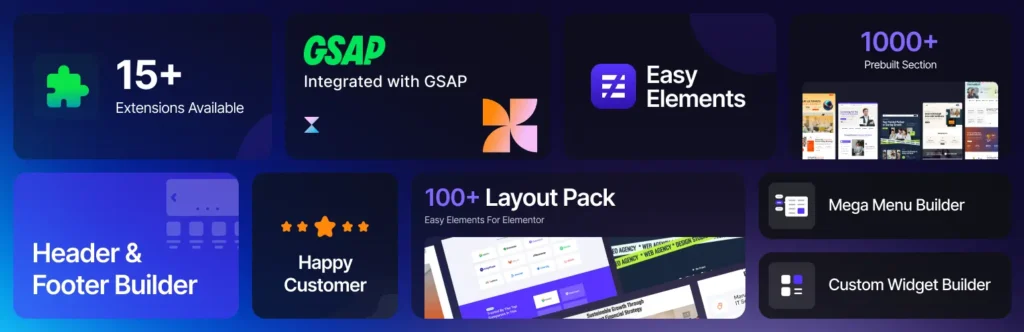
While fixing CSS issues is important, preventing design problems in the first place is even better. That’s where Easy Elements can help.
Easy Elements is a powerful addon built specifically for Elementor users who want more control, smoother performance, and fewer styling headaches. It extends Elementor with additional widgets, cleaner styling options, and optimized code that reduces conflicts often caused by bloated third-party plugins.
Instead of stacking multiple addons (which can increase CSS conflicts and caching problems), Easy Elements keeps everything lightweight and streamlined, helping your pages load faster and your styles update more reliably.
Why use Easy Elements?
- Extra creative widgets without heavy scripts
- Better performance and cleaner CSS output
- Fewer plugin conflicts
- More design flexibility inside Elementor
- Lightweight alternative to installing multiple addons
If you frequently run into styling or update issues, simplifying your toolkit with a well-optimized addon like Easy Elements can make your Elementor workflow much more stable and efficient.
In short: less bloat, fewer conflicts, faster updates and smoother design control.
Final Thoughts
Dealing with the Elementor CSS not updating issue can feel confusing at first, but once you understand the root cause, it becomes much easier to fix. In most cases, nothing is actually “broken” inside Elementor; rather, your site is simply serving old cached CSS files instead of the fresh ones you just generated.
By systematically regenerating CSS, clearing browser and plugin caches, purging your CDN, and checking for theme or plugin conflicts, you can quickly restore Elementor’s real-time editing experience. These simple troubleshooting steps solve the vast majority of problems without requiring any advanced technical knowledge.
Going forward, keeping your WordPress setup lean, using fewer optimization plugins, lightweight themes, and proper caching practices, will help prevent this issue from happening again. A clean, well-optimized site not only updates styles reliably but also performs faster overall.