

Building a WordPress website with Elementor should feel easy and creative but many users quickly hit a wall. You install Elementor, start designing, and then realize something’s missing. The widgets feel limited, the layouts look basic, and the advanced features you imagined just aren’t there. Suddenly, creating a professional-looking site becomes frustrating and time-consuming.
Without the right tools, you end up wasting hours trying to customize designs, adding extra plugins that don’t work well together, or struggling with code you never wanted to touch in the first place. Worse, your website may look plain compared to competitors who seem to have smoother animations, better layouts, and more powerful features.
That’s where Elementor Addons come in. These powerful extensions unlock extra widgets, templates, and design options that instantly level up your site—no coding required. In this step-by-step guide, you’ll learn exactly how to install and use Elementor addons, so you can build faster, design smarter, and create a website that truly stands out.
What Is an Elementor Addon?
An Elementor addon is a WordPress plugin that works alongside Elementor and adds extra widgets, extensions, and functionality that are not available by default.
Easy Elements is an Elementor addon that provides advanced widgets, animation features, navigation tools, and performance-focused extensions to help you build modern websites without coding.
How to Install and Use Elementor Addons Step by Step
Let’s follow the step-by-step guide to install and use Elementor Addons.
Step 1: Install Elementor Plugin
Before installing Easy Elements, make sure Elementor is installed.
- Go to your WordPress Dashboard
- Navigate to Plugins → Add New
- Search for Elementor
- Click Install Now, then Activate
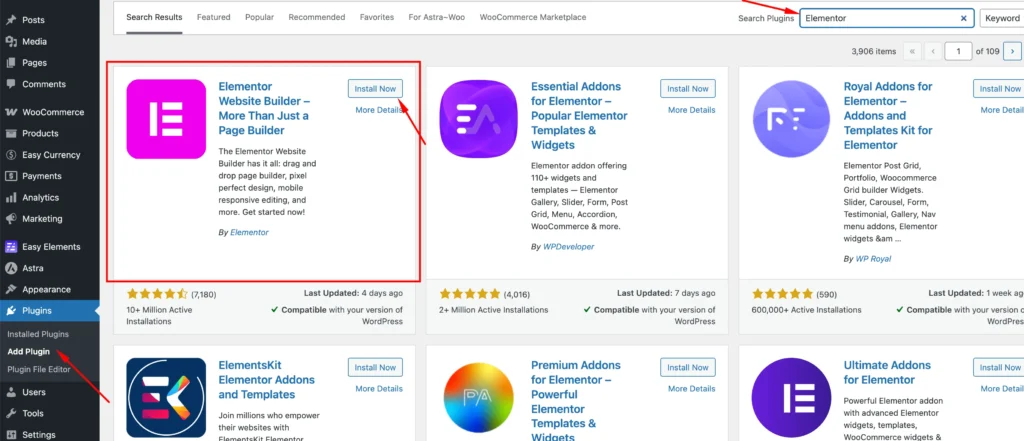
Elementor is now ready to use.
Step 2: Install Easy Elements Elementor Addon Plugin
Now install Easy Elements as your Elementor addon.
- Go to Plugins → Add New
- Search for Easy Elements
- Click Install Now
- Click Activate
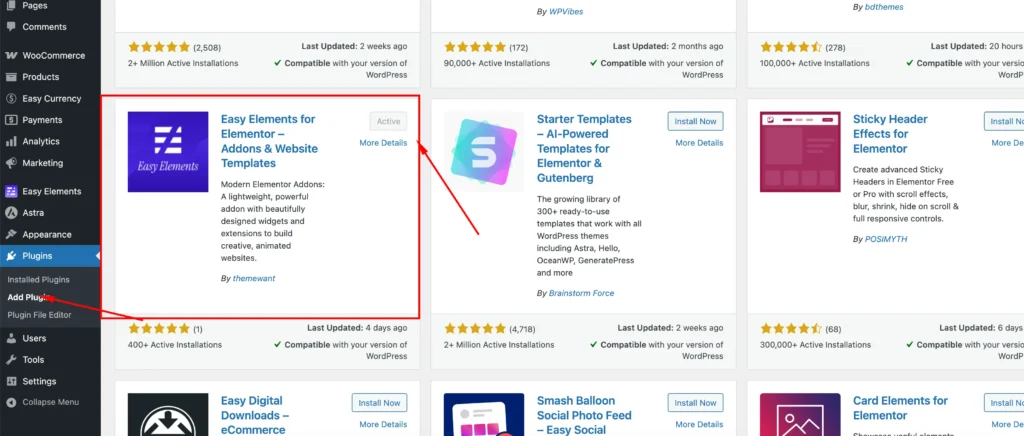
If you’re using Easy Elements Pro, upload and activate the Pro plugin as well.
Step 3: Enable Widgets and Extensions in Easy Elements
Easy Elements allows you to control which widgets and features are active.
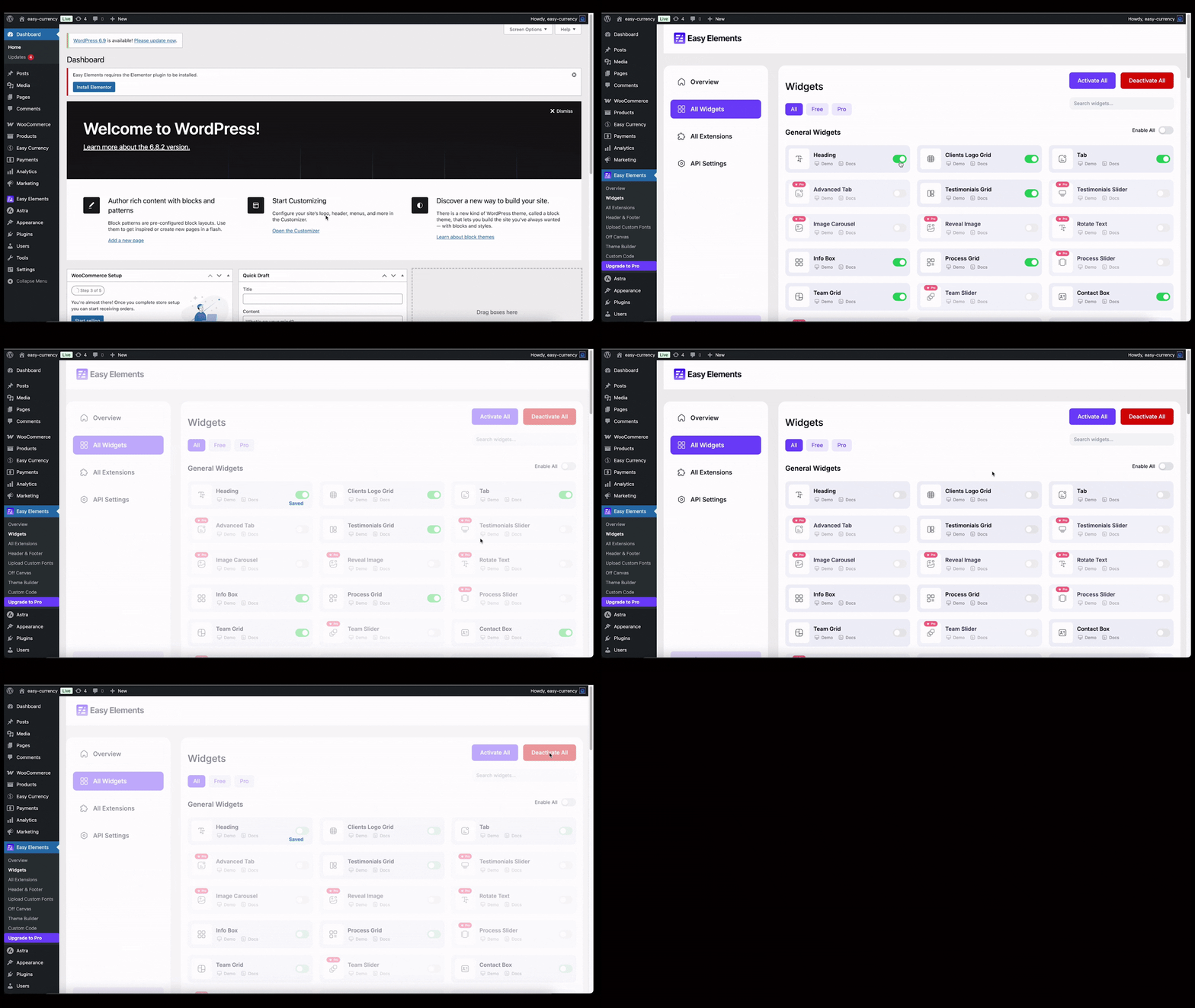
- Go to Dashboard → Easy Elements
- Open the Widgets or Extensions section
- Enable only the widgets you need
- Save your changes
This helps keep your website lightweight and optimized.
Step 4: Create or Edit a Page with Elementor
Now it’s time to use Easy Elements widgets.
- Go to Pages → Add New or open an existing page
- Click Edit with Elementor
- The Elementor editor will open
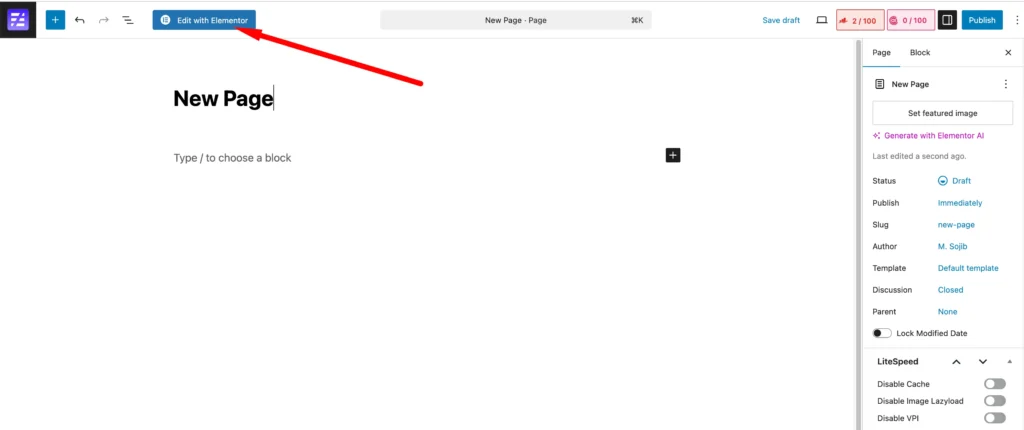
In the widget panel, you’ll now see Easy Elements widgets listed and ready to use.
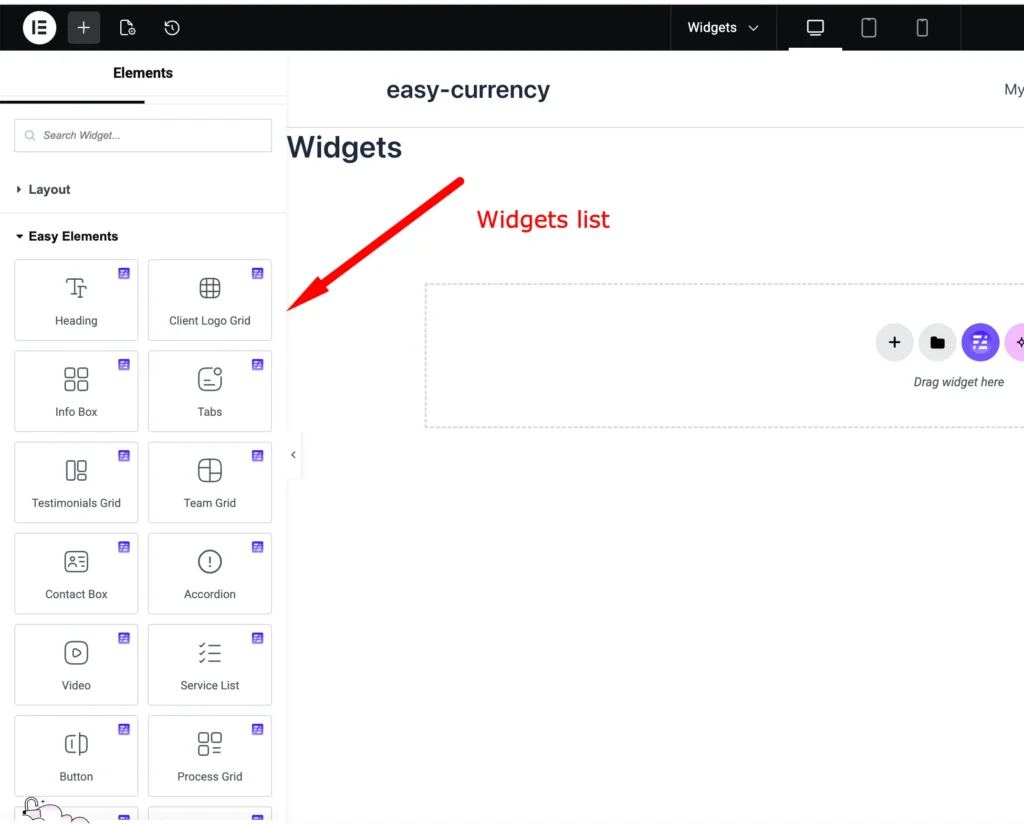
Step 5: Add Easy Elements Widgets to Your Page
- Search for any Easy Elements widget (for example: Features List, Animated Text, Button, or Navigation)
- Drag and drop the widget into your page
- Customize the content, layout, and style settings
- Adjust colors, typography, spacing, and animations
All changes are visible instantly in the live editor.
Step 6: Customize Layout, Animation, and Navigation
With Easy Elements, you can enhance your page design by:
- Adding animated headings and buttons
- Creating single-page navigation for landing pages
- Using testimonial sliders and team grids
- Applying hover effects and scroll animations
These features help make your website more interactive and user-friendly.
Step 7: Preview and Publish Your Page
Before publishing:
- Preview your page on desktop, tablet, and mobile
- Check navigation links and animations
- Make sure everything works as expected
Once ready, click Publish or Update.
Step 8: Best Practices When Using Easy Elements
To get the best results with Easy Elements:
- Enable only the widgets you actually use
- Avoid installing multiple Elementor addon plugins
- Keep Easy Elements and Elementor updated
- Use built-in features instead of extra plugins when possible
- Test performance after adding animations
Final Thoughts
Using an Elementor addon like Easy Elements makes website building faster, easier, and more flexible. From installing the plugin to adding advanced widgets and navigation, Easy Elements integrates seamlessly with Elementor and helps you design professional websites without coding.
If you’re looking for a single addon that covers design, animation, and layout needs, Easy Elements is a great place to start.