
Elementor might look simple on the surface, but beneath its drag-and-drop interface lies a powerful toolkit that most users never fully explore. While beginners focus on basic layouts and widgets, advanced creators quietly leverage hidden features that dramatically improve design flexibility, speed, and conversion performance.
From custom positioning tricks and global styling controls to dynamic content integrations and performance tweaks, these lesser-known capabilities can transform how you build websites. They don’t just save time, but they unlock a level of precision and creativity that separates average sites from truly professional ones.
In this guide, we’ll uncover the hidden Elementor features that can elevate your workflow, boost your site’s performance, and help you design like a pro without writing a single line of code.
What Are Hidden Elementor Features and Why They Matter
Hidden Elementor features are advanced tools and settings that are not immediately visible or commonly used by beginners. These features often sit quietly inside advanced tabs, global settings, or experimental options, waiting to be unlocked by users who want more control and efficiency.
What makes these features so powerful is their ability to drastically reduce design time while increasing output quality. Instead of manually adjusting every element, you can use global systems, dynamic data, and positioning logic to automate and streamline your entire workflow.
When used correctly, these hidden Elementor features can help you build faster websites, maintain consistent branding, and improve conversion rates, all without touching code.
15 Hidden Features in Elementor Most Users Don’t Know
Most users only scratch the surface of what Elementor can actually do. These hidden features can speed up your workflow, improve design flexibility, and make you work like a pro.
1. Navigator (Layer Panel)
Press Ctrl/Cmd + I and Elementor opens the Navigator, which works like a layer panel. This makes it much easier to rename sections, rearrange elements, and jump around complex layouts without scrolling endlessly.
2. Finder (Super Fast Navigation)
Press Ctrl/Cmd + E and you’ll unlock Elementor’s Finder. This feature lets you instantly jump to any page, template, setting, or theme builder location and dramatically speeds up your workflow.
3. Copy & Paste Styles
You can right-click any widget and copy its styling, then paste it onto another widget. This hidden feature helps you maintain consistent design without manually adjusting colors or typography.
4. Global Widgets (Reusable Blocks)
Global widgets allow you to create something once and reuse it everywhere. When you edit a global widget, it updates across your entire website.
5. Right-Click Menu Like Pro Design Tools
Many users overlook Elementor’s right-click menu. It lets you duplicate, copy, paste, delete, and save templates quickly.
6. Responsive Controls Beyond Mobile
Elementor allows you to adjust settings separately for desktop, tablet, and mobile. You can tweak font sizes, margins, and hide sections per device
7. Custom Positioning (Absolute & Fixed)
Custom positioning allows you to place elements anywhere on the page using absolute or fixed positioning for advanced layouts.
8. Inline Editing
Instead of editing text from the sidebar, you can click directly on text and type instantly which speeds up content editing.
9. Keyboard Shortcuts
Elementor supports keyboard shortcuts like duplicate, undo, redo, and save to improve workflow speed.
10. Motion Effects
Motion effects allow you to create animations like scrolling effects, mouse tracking, and fade-ins for a more dynamic design.
11. Custom Breakpoints
Elementor allows you to create custom breakpoints for better responsive control across different screen sizes.
12. Template Library Import Tricks
You can import pages, blocks, or sections from Elementor’s template library to speed up design.
13. Role Manager
Elementor allows you to control what different users can edit, which is helpful for teams or clients.
14. Theme Builder Conditions
You can apply templates conditionally, such as different headers for blog posts and landing pages.
15. Custom CSS (Pro Feature)
Elementor Pro allows you to add custom CSS directly inside widgets, sections, or pages for unlimited customization
Easy Elements: Unlock Advanced Design Power Without Complexity
If you feel like Elementor still lacks certain advanced widgets or design flexibility, this is where Easy Elements becomes a game-changer. It’s designed to extend Elementor’s core functionality by adding powerful, ready-to-use widgets and creative elements without slowing down your website or complicating your workflow.
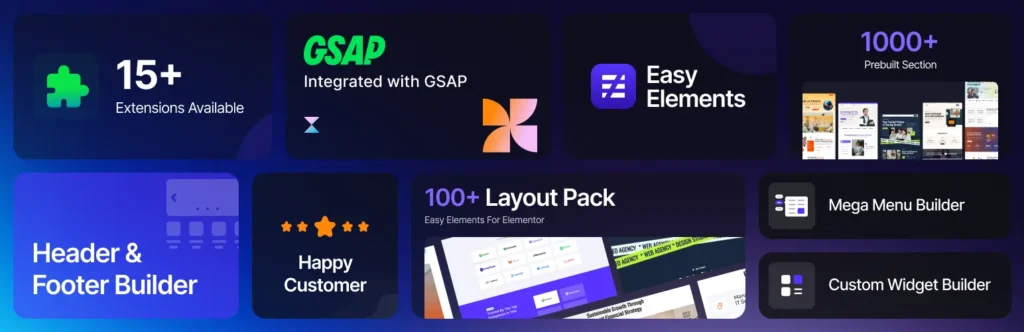
What makes Easy Elements stand out is its focus on performance and usability. Instead of installing multiple bulky add-ons, you get a lightweight solution that delivers exactly what you need to build high-converting pages. From advanced UI blocks to conversion-focused widgets, it helps you design faster while maintaining full creative control.
Whether you’re building landing pages, directory sites, or business websites, Easy Elements gives you the extra edge to stand out. You can create more engaging layouts, add dynamic sections, and enhance user experience all without writing a single line of code.
If you’re serious about scaling your Elementor workflow and building professional-grade websites efficiently, Easy Elements is not just an add-on—it’s a smart upgrade.
Conclusion
Elementor is far more powerful than most users realize. By unlocking its hidden features, you can move beyond basic designs and start building high-performance, conversion-focused websites with ease.
The difference between an average Elementor user and an expert isn’t the tools—it’s how deeply they explore them. Once you start using these features, you’ll not only save time but also create websites that truly stand out.