



The Custom Code feature in Easy Elements lets you easily add your own JavaScript snippets directly to your site. Use it to insert tracking scripts like Google Analytics or Facebook Pixel, apply custom styles, or enhance functionality with JS events and dynamic effects.
To add custom code, follow these steps:
- Login to WP Admin.
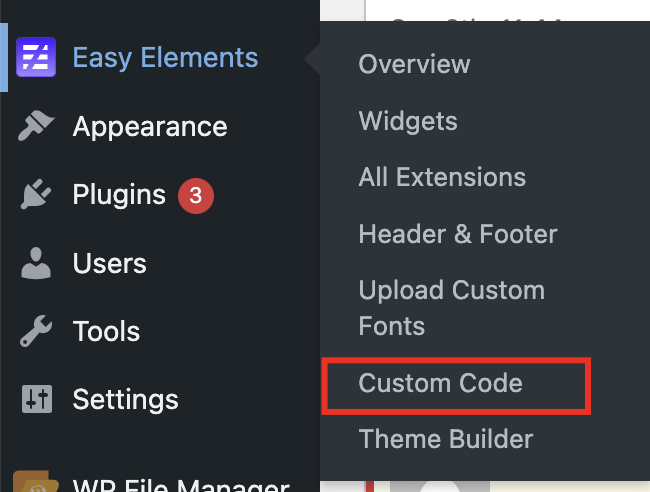
2. Go to Easy Elements -> Custom Code
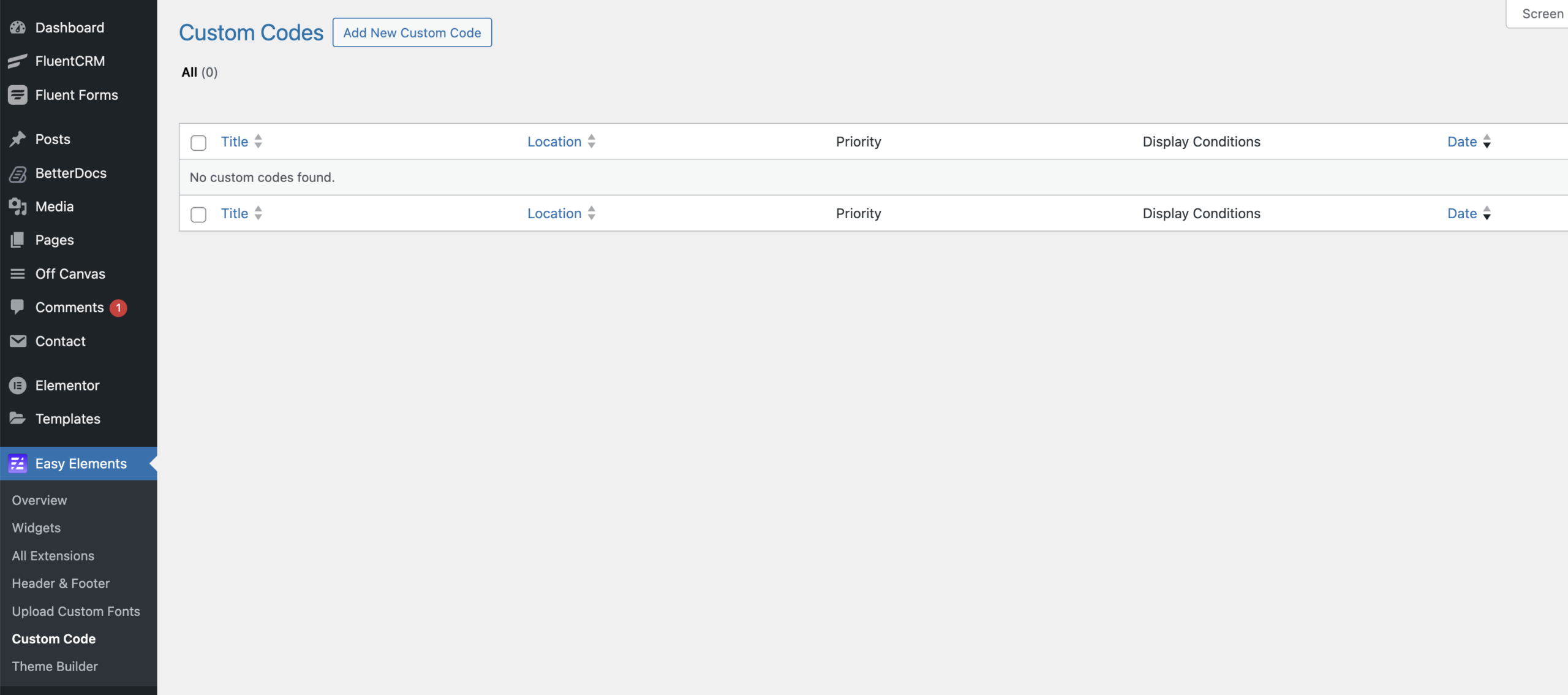
3. Click to Add New Custom Code and Custom code page appear
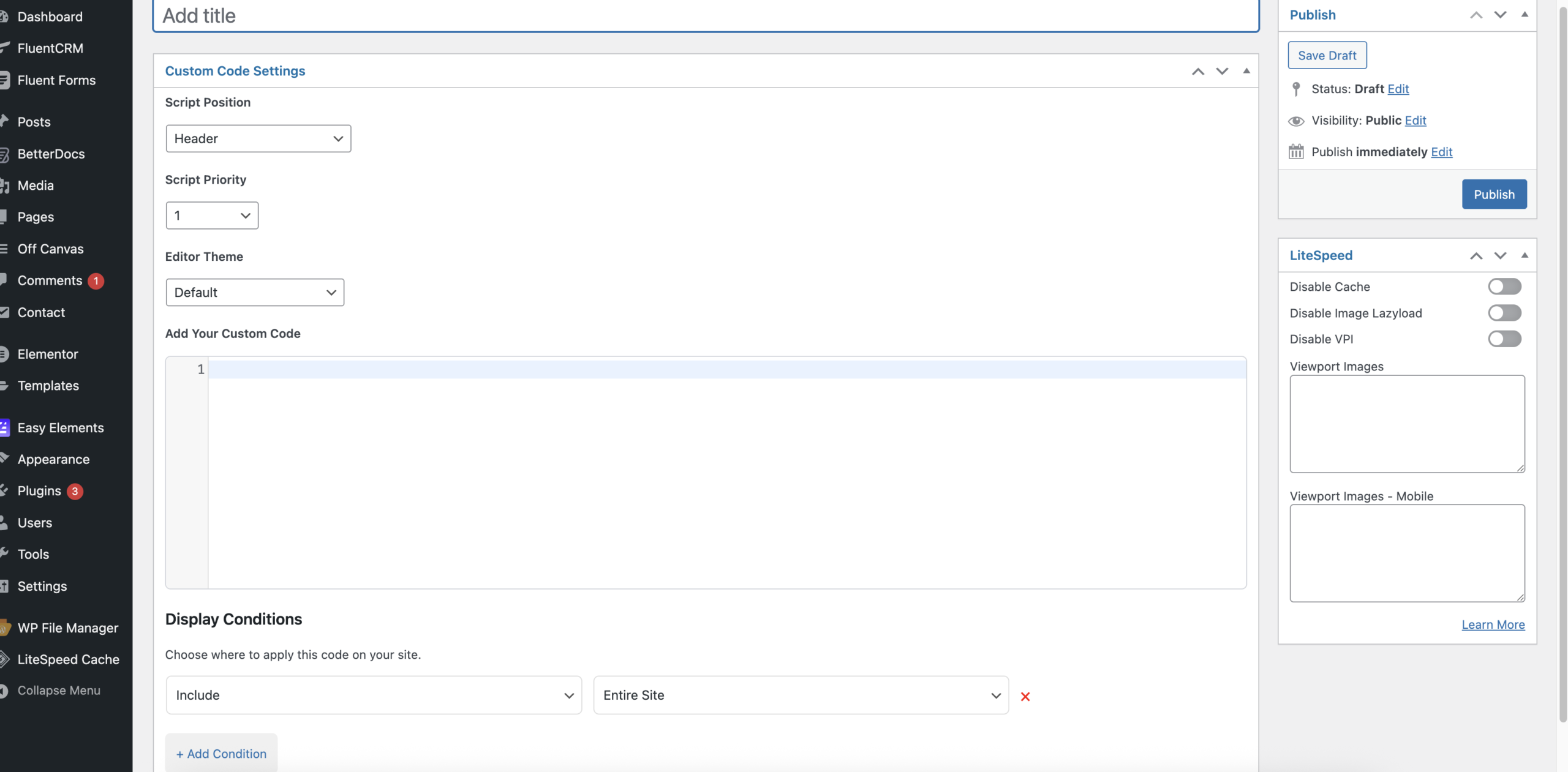
4. Enter the following:
Add title – It helps you identify this code snippet later where to use.
Location – Determines the section of the webpage where the code will be located. Choose from the following options:
<head> – at the page level
<body> – Start – at beginning of the page’s body
<body> – End – at end of the page’s body
Priority – Select a priority level between 1 and 10 to control the execution order when multiple scripts are added to the same location.
Note: Lower numbers run first — for example, a script with priority 1 executes before one with priority 5.
Simply paste your code into the code block editor, where the built-in code linter automatically checks for syntax errors and highlights any issues instantly.
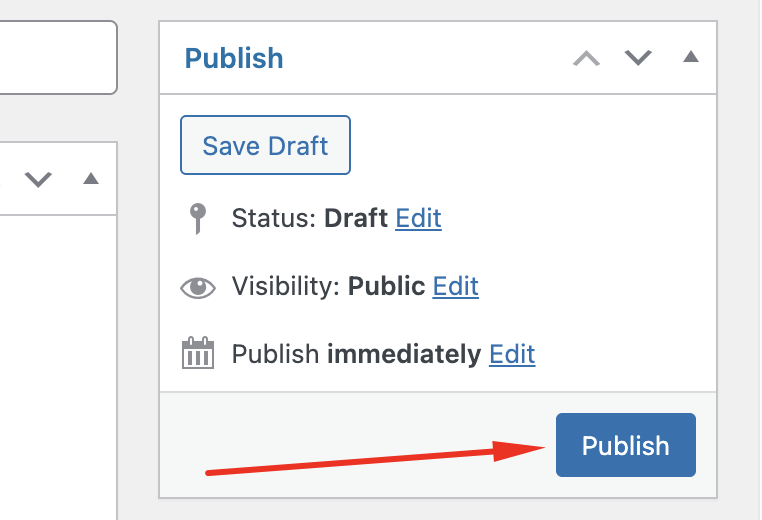
5. From the publish block you can publish your code
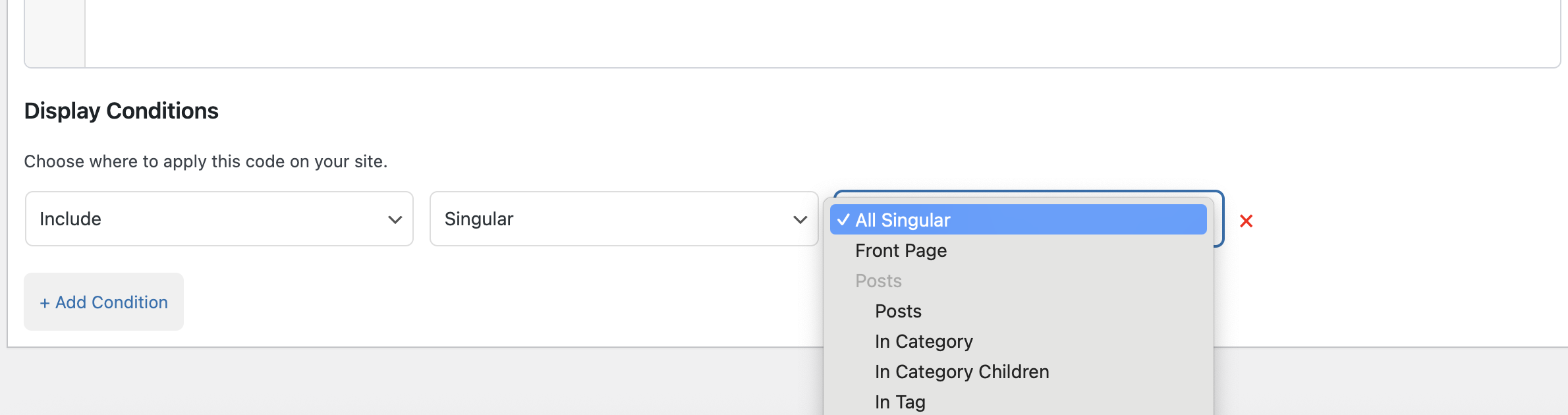
6. Also you set condition here where show this code. Which page or entire site or anywere
With Custom Code in Easy Elements, you have complete flexibility to extend your website beyond standard design limits. Whether you’re adding analytics scripts, dynamic interactions, or personalized styling, this feature empowers you to fine-tune every detail — giving your Elementor site both creative freedom and developer-level control.


