



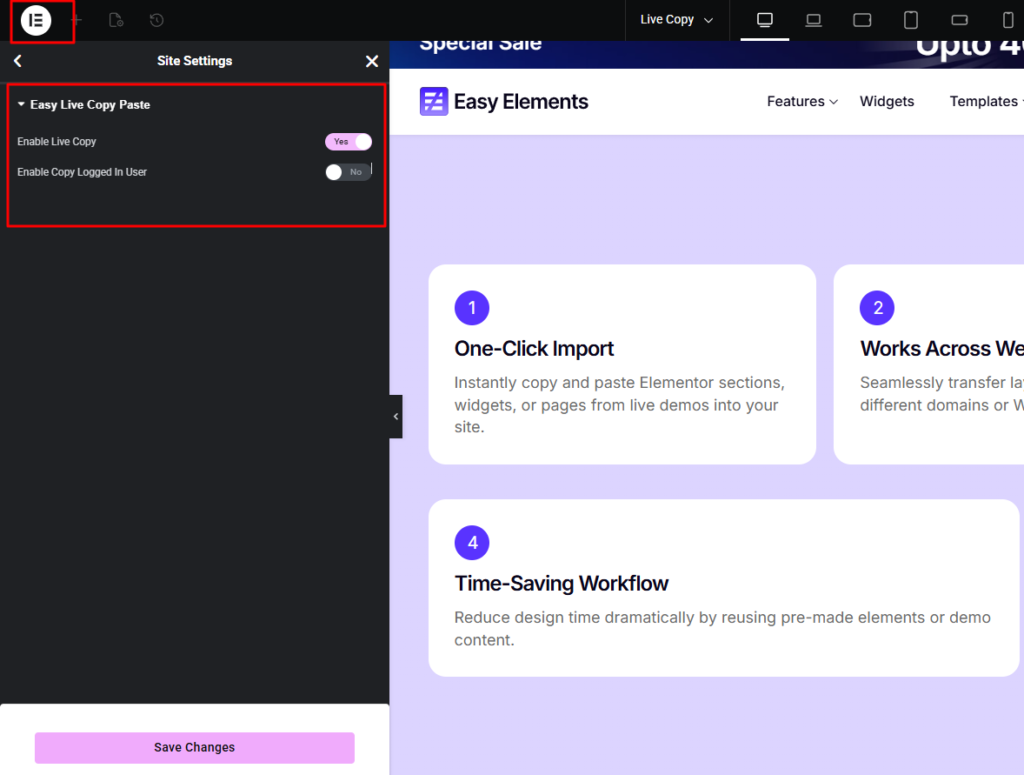
To enable Live Copy & Paste, you must first turn it on from Elementor Site Settings. If this option is not enabled, the Live Copy & Paste feature will not appear when you click on any section in the Elementor editor.
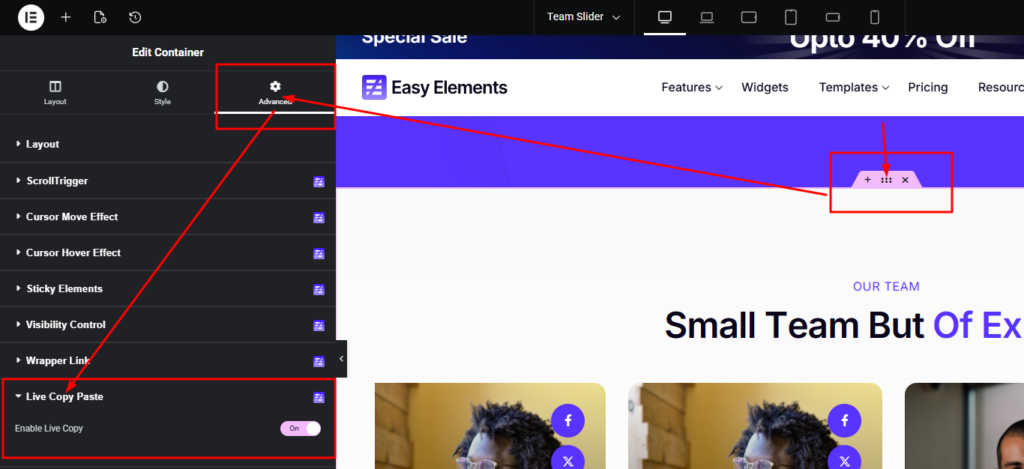
Click the Edit Section icon at the top of the section you want users to copy & Paste.
Go to the Advanced Section menubar and open the Live copy paste option then enable the live copy.
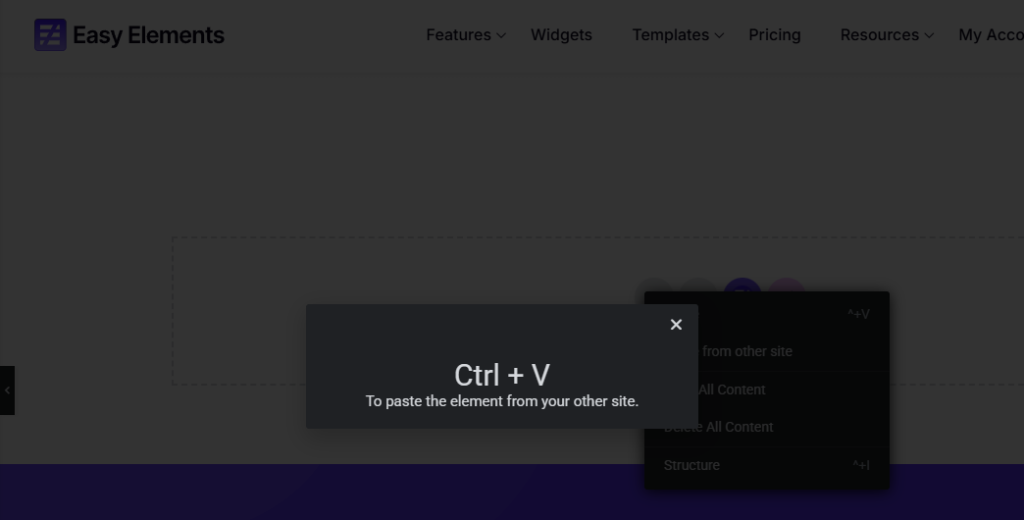
Live Copy & Paste works directly from the frontend view. You can simply copy a section from one site and paste it into the Elementor editor of another site using Ctrl + V, and the entire section will be imported instantly.
Alternatively, you can export the section as a JSON file and then import it into another website through Elementor’s Saved Templates feature for reuse across different sites.

Copy from the frontend view and paste it directly into another site using Paste from Other Site.
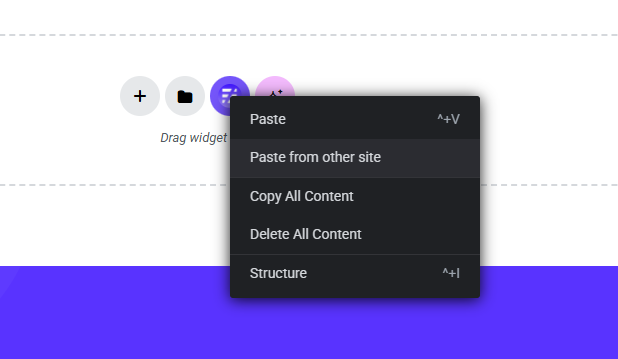
Then press Ctrl + V to paste it.