



Enhance your visuals with interactive hover effects using the Hover Image Box widget. This feature lets you display an image with dynamic animations, overlays, titles, and descriptions that appear when users hover. Perfect for showcasing services, portfolios, products, or promotional content with a stylish interactive touch.
How to Use Hover Image Box Widget of Easy Elements Pro
Step 1:
Add Hover Image Box Widget:
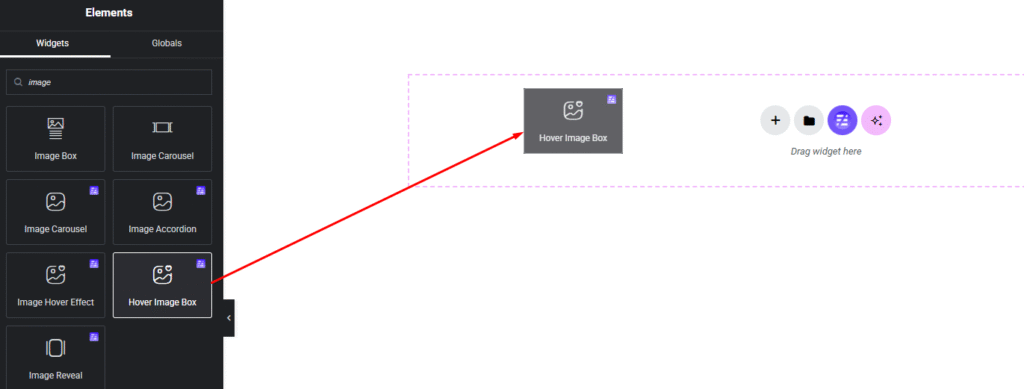
Select the Hover Image Box widget from the left panel, then drag and drop it into your desired area on the canvas.
Step 2:
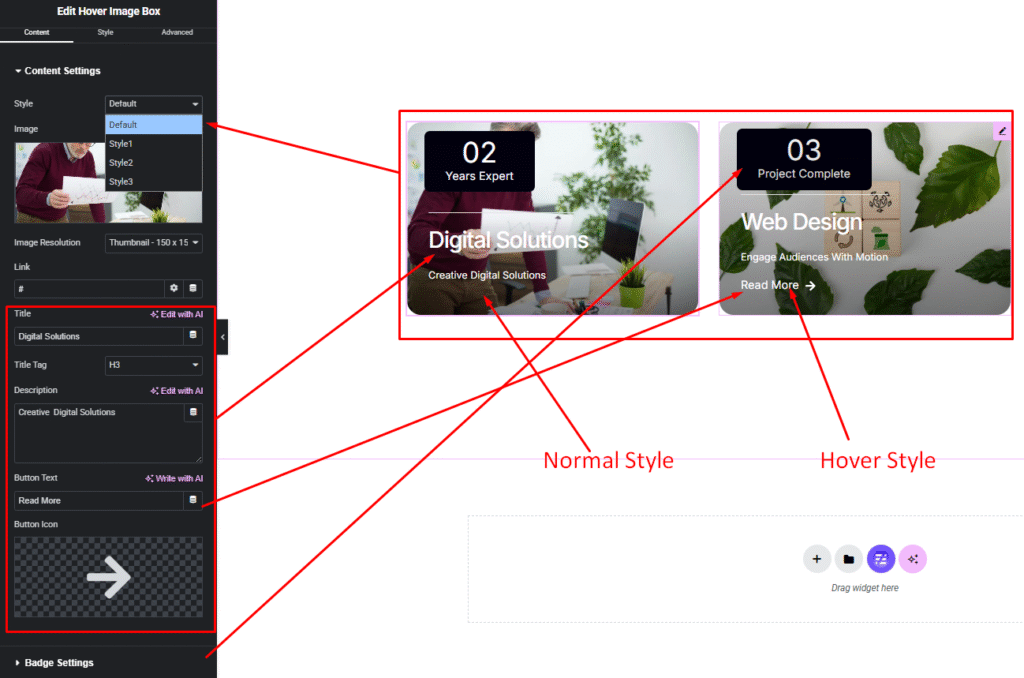
Hover Image Box Settings:
- Image
- Title
- Description
- Button Settings
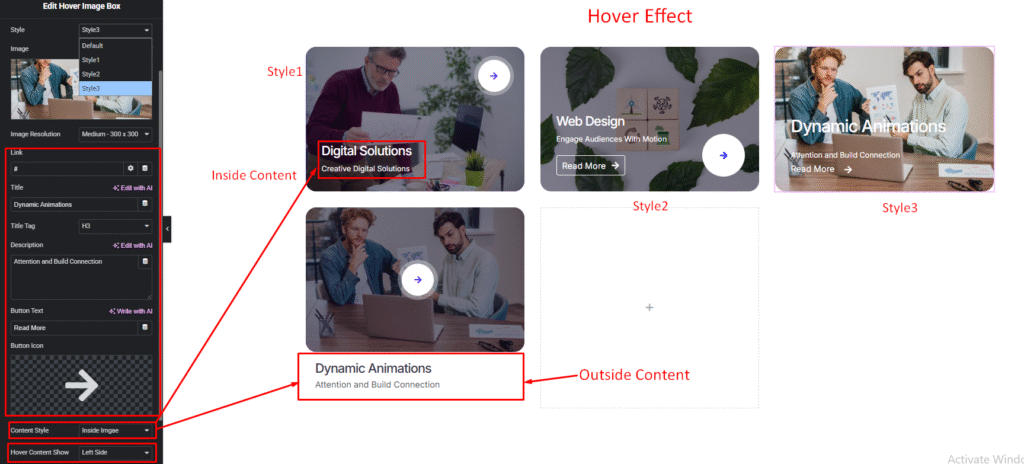
- Content Style
1.Inside Image
2.Outside Image - Hover Content Show
1.Bottom
2.Left
2.FadeIn - Badge Settings (only for default style)
Default Layout:
Others Layout:
Step 3:
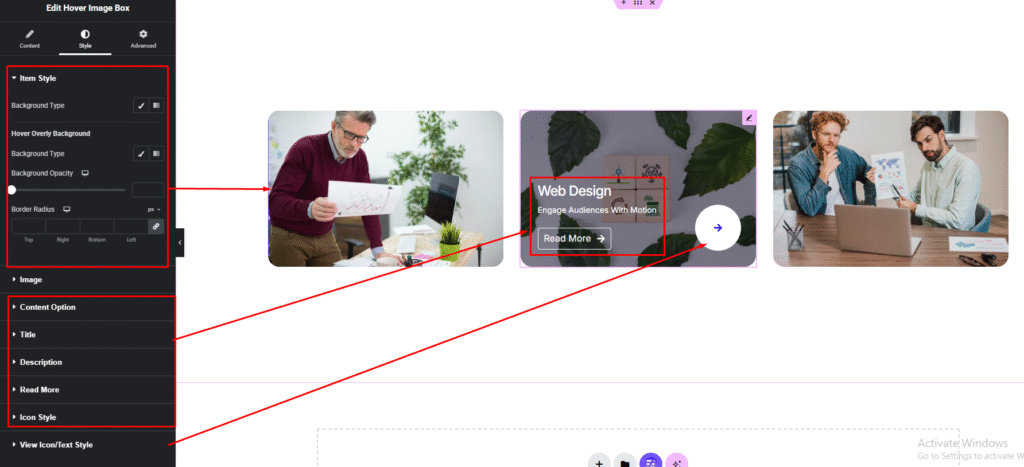
Customize Hover Image Box Style:
Easily customize your widget’s appearance including Hover Image Box item, image, content option, title, description and more style — all from the Style panel.
Watch this video with all settings changes and previews.
Video Coming Soon


