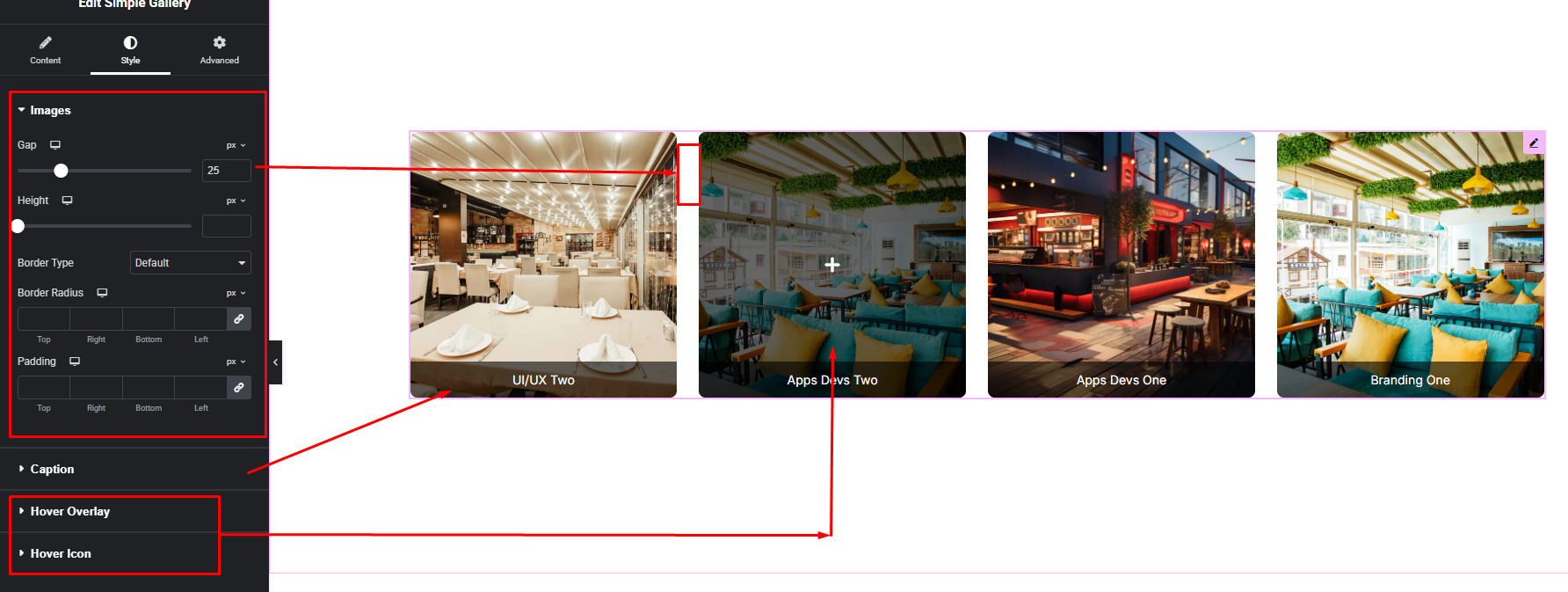


Showcase multiple images in a clean and minimal gallery layout. The Simple Gallery widget lets you display photos beautifully without any complex settings, making it perfect for portfolios, product showcases, and personal collections.
How to Use Simple Gallery Widget of Easy Elements
Step 1:
Add Simple Gallery Widget:
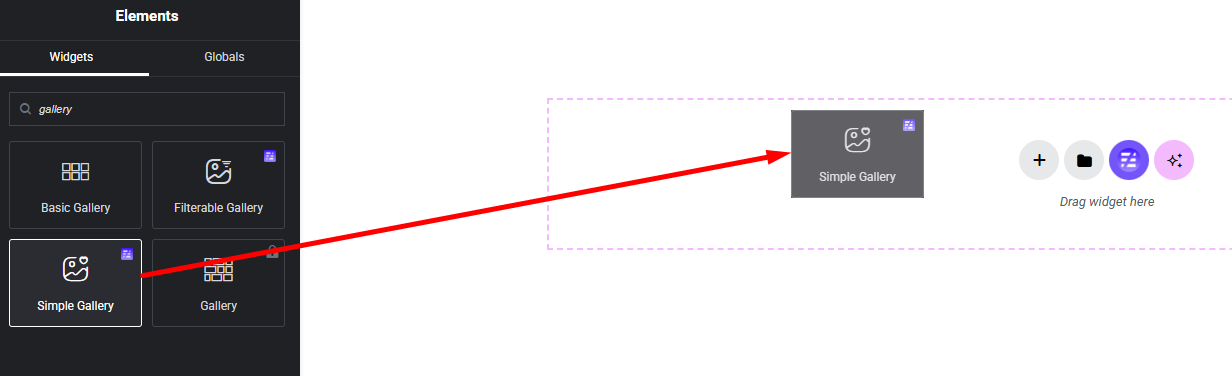
Select the Simple Gallery widget from the left panel, then drag and drop it into your desired area on the canvas.
Step 2:
Simple Gallery Settings:
- Select Gallery Images
- Select Gallery Column (any device changeable)
- Image Caption Show / Hide
- Caption Source
- Lightbox Enable / Disable
- Gallery Order Select
- Image Hover Effect
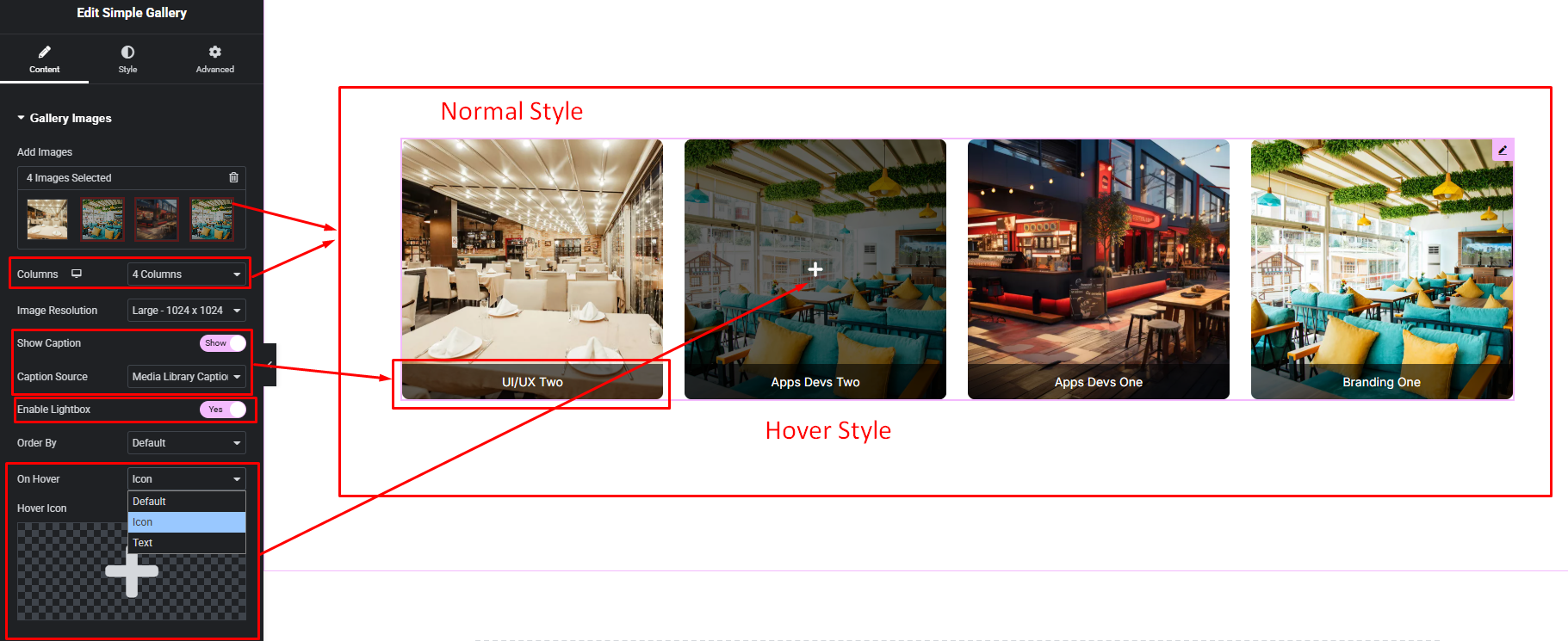
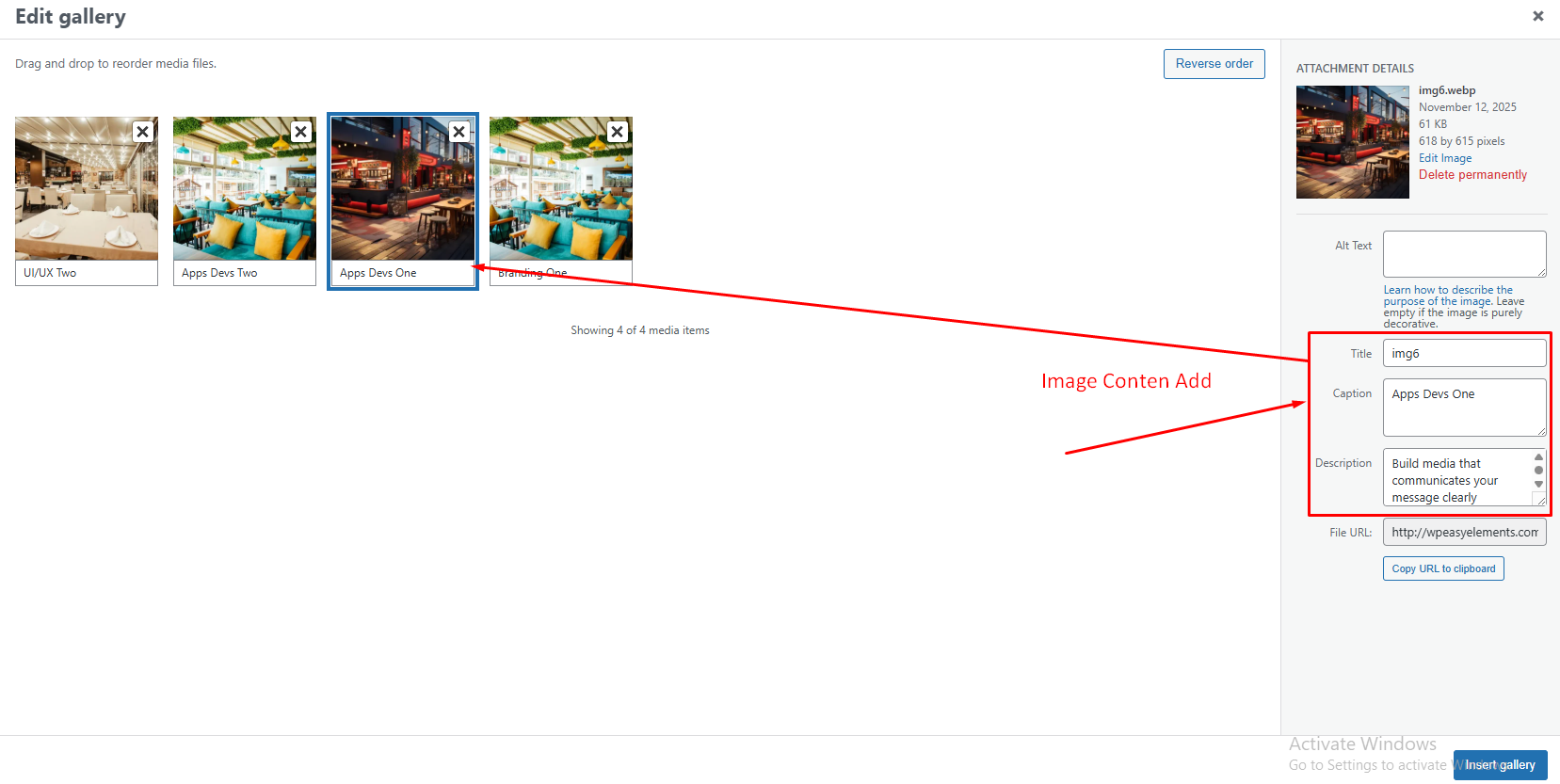
Image Caption Source:
Step 3:
Customize Simple Gallery Style:
Easily customize your widget’s appearance including gallery item, caption, hover overlay bg and hover icon or text style —all from the Style panel.