



Highlight your team in an interactive slider format. The Team Slider widget offers smooth transitions, modern layouts, and full customization, making it easy to introduce your team members in a visually engaging and space-saving way.
How to Use Team Grid Widget of Easy Elements Pro
Step 1:
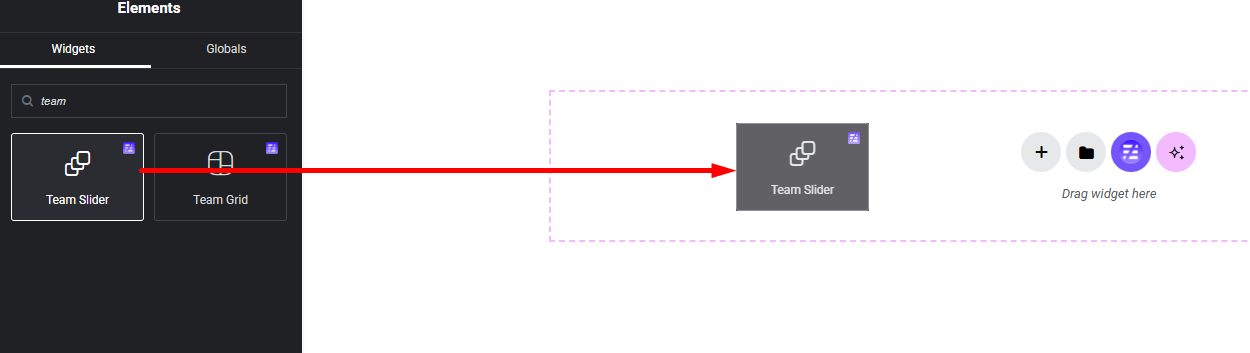
Add Team Slider Widget:
Select the Team Slider widget from the left panel, then drag and drop it into your desired area on the canvas.
Step 2:
Team Slider Settings:
- Team Settings:
- Slider Settings
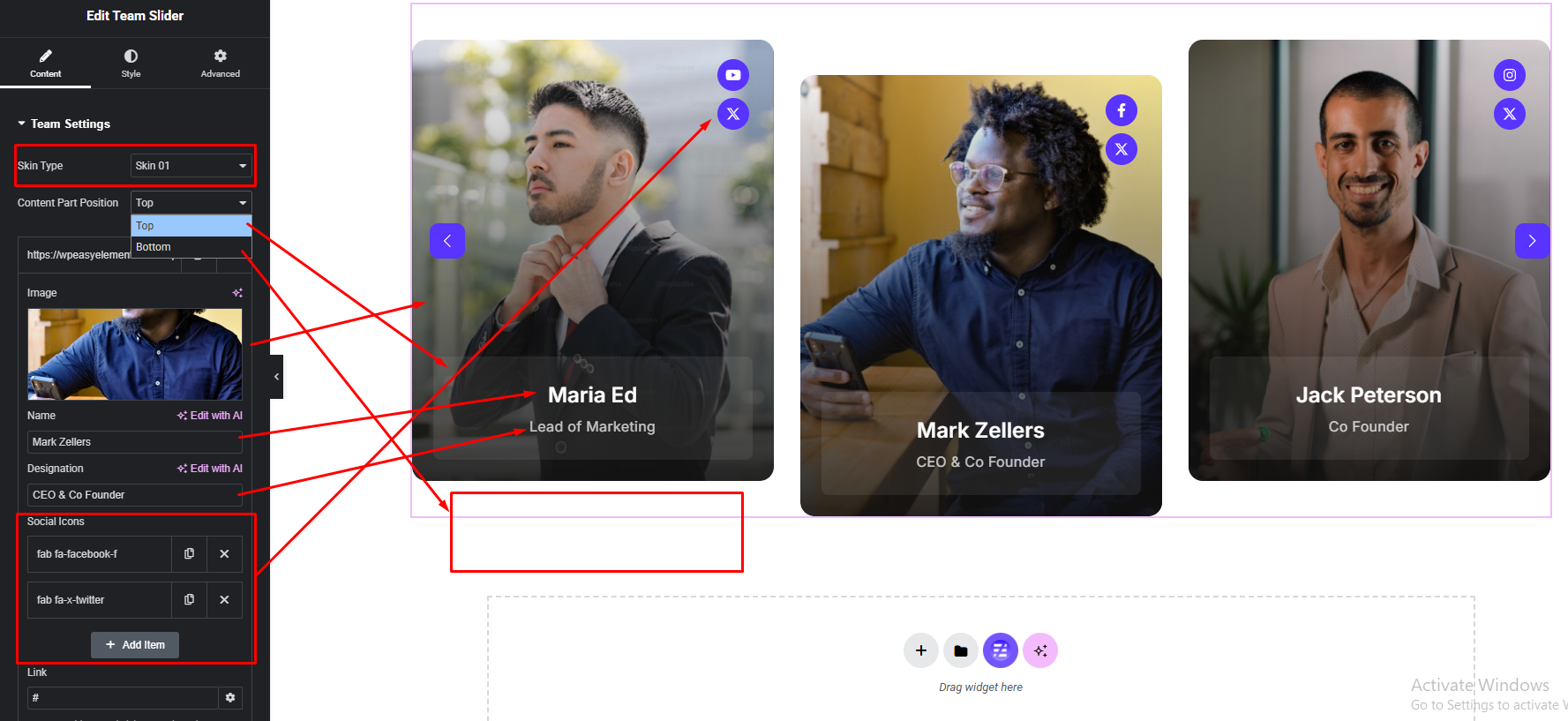
Team Settings:
- Skin Type
- Content Part Options
- Team Image
- Name
- Designation
- Social Icon Show/Hide
- Name Title Tag (Default {h3})
- Item Overly Background Color
- Items UP Down Style Show
- Social Icon Show / Hide
- Social Icon Position

Slider Settings:
- Slider Default Settings
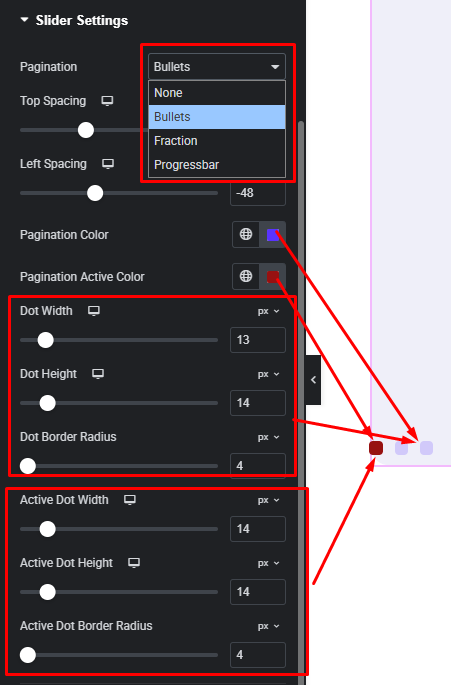
- Slider Pagination Settings
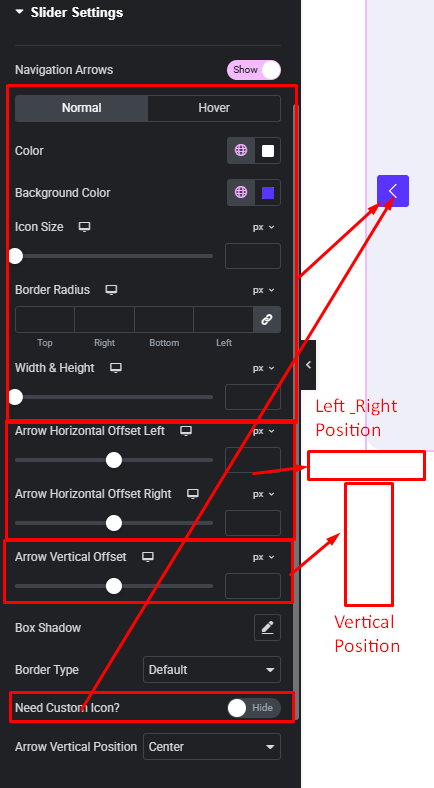
- Slider Navigation Settings
Slider Default Settings:

Slider Pagination Settings:
Slider Navigation Settings:
Step 3:
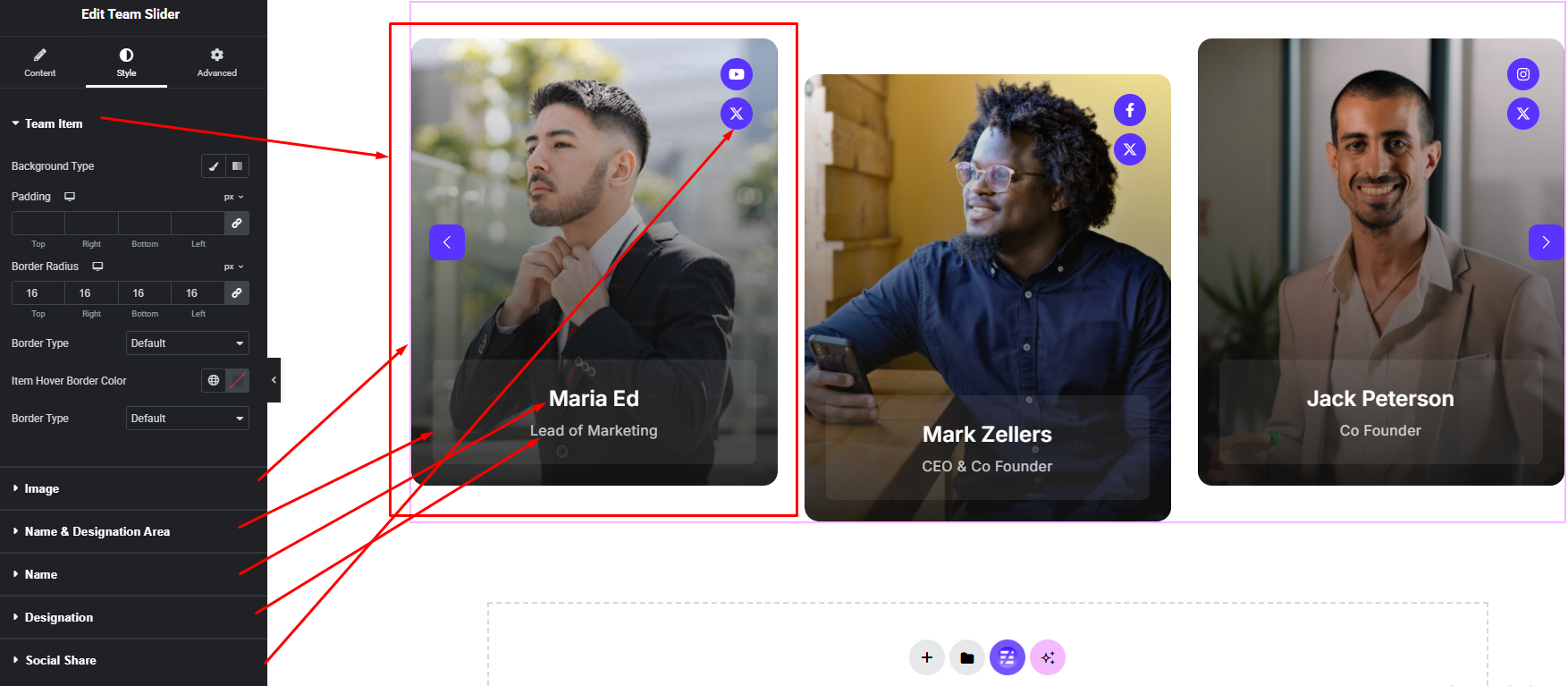
Customize Team Style:
Easily customize your widget’s appearance including Team Slider item background, border, padding etc. & Team Name, Designation and more —all from the Style panel.
Watch this video with all settings changes and previews.
Video Coming Soon


