

Enhance the shopping experience with instant product previews without leaving the page. Customers can quickly view details and make faster purchase decisions. It saves time and adds a modern touch to your store.
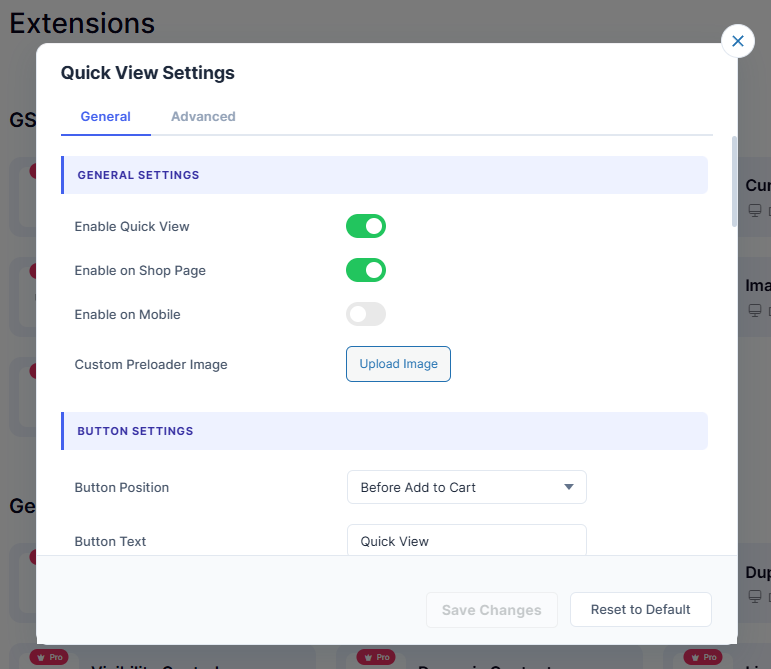
1. General Settings
- 1.1 – Enable Quick ViewToggles the Quick View feature on or off sitewide.
- 1.2 – Enable on Shop PageShows or hides Quick View button on the Shop page.
- 1.3 – Enable on MobileEnables or disables Quick View on mobile devices.
- 1.4 – Custom Preloader ImageUpload a custom loading image for the popup.
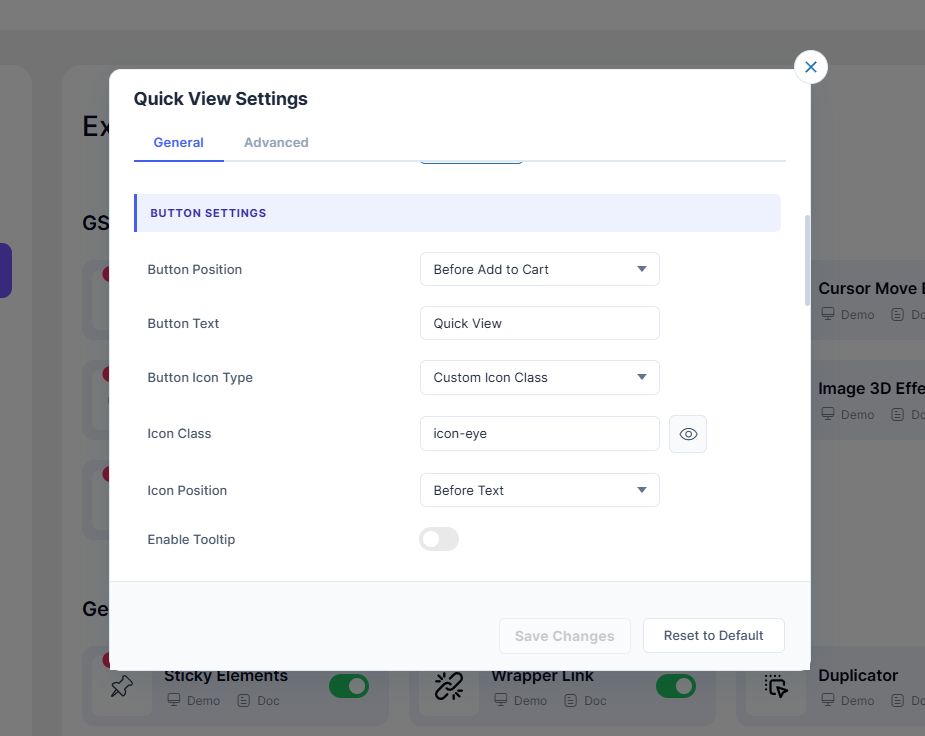
2. Button Settings
- 2.1 – Button PositionSet where the Quick View button appears on product cards.
- 2.2 – Button TextCustomize the label shown on the Quick View button.
- 2.3 – Button Icon TypeChoose between no icon, default, custom class, or image.
- 2.4 – Icon ClassEnter or pick a custom icon class for the button.
- 2.5 – Custom Icon ImageUpload your own image to use as the button icon.
- 2.6 – Icon PositionPlace the icon before or after the button text.
- 2.7 – Enable TooltipShow a tooltip when hovering over the button.
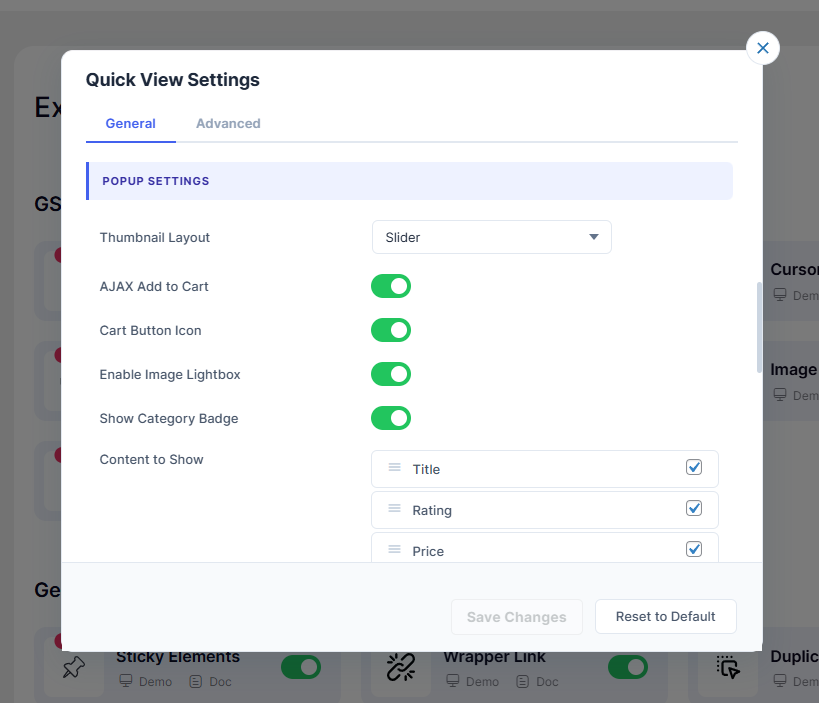
3. Popup Settings
- 3.1 – Thumbnail LayoutDisplay product images as a slider or single image.
- 3.2 – AJAX Add to CartAdd to cart from popup without page reload.
- 3.3 – Cart Button IconShow or hide icon inside the Add to Cart button.
- 3.4 – Enable Image LightboxOpen product images in fullscreen lightbox view.
- 3.5 – Show Category BadgeDisplay the product category as a badge in popup.
- 3.6 – Content to ShowChoose and reorder content items shown in popup.
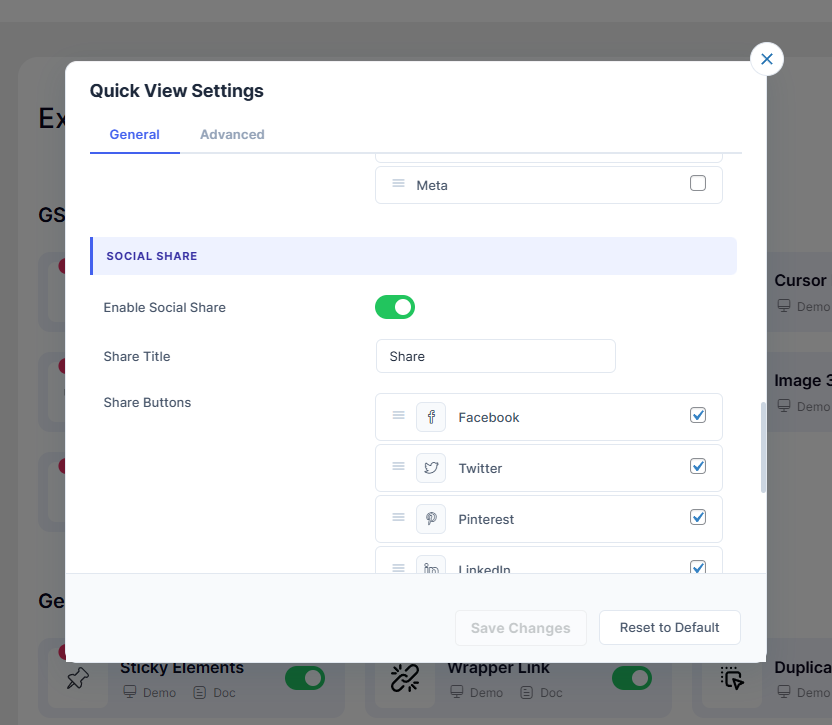
4. Social Share
- 4.1 – Enable Social ShareShow or hide social sharing buttons in popup.
- 4.2 – Share TitleSet the label displayed before the share buttons.
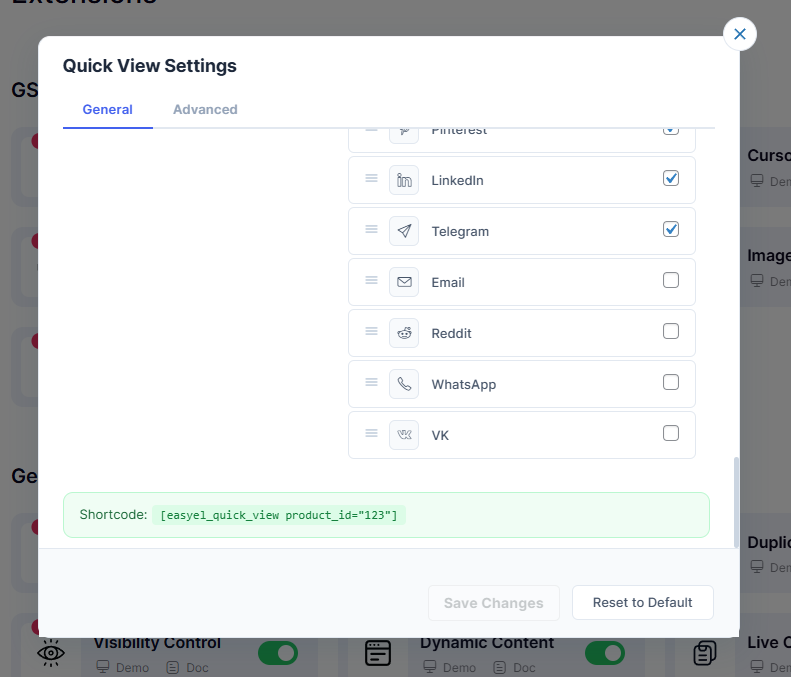
- 4.3 – Share ButtonsEnable, disable, and customize each social platform icon.
5. Shortcode
- 5.1 – Quick View ShortcodeUse
Quick Viewto embed anywhere.
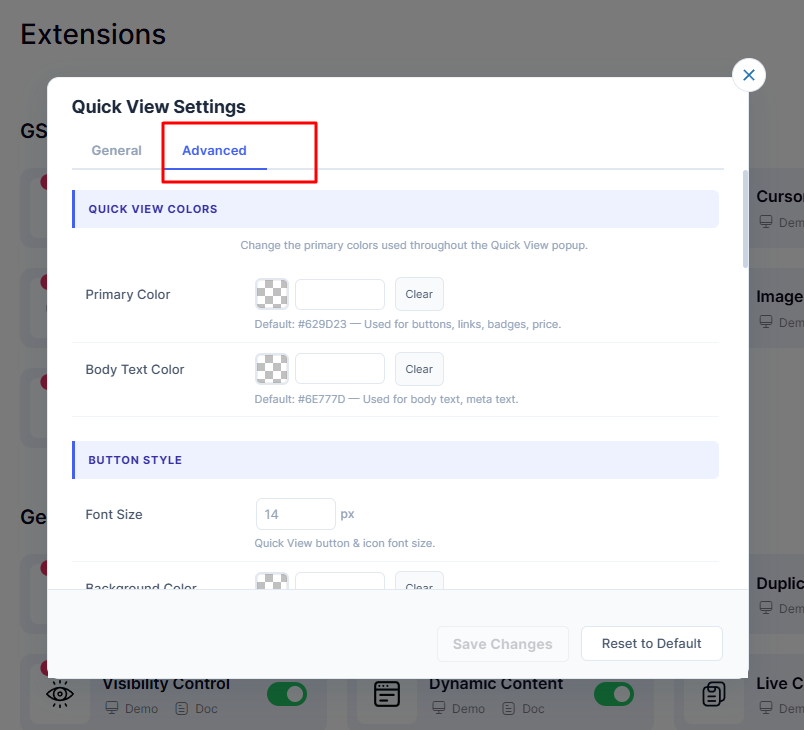
1. Quick View Colors
- 1.1 – Primary ColorMain accent color for buttons, links, badges and price. Default:
#629D23 - 1.2 – Body Text ColorColor used for body text and meta text. Default:
#6E777D
2. Button Style
- 2.1 – Font SizeQuick View button and icon font size in px. Default:
14px - 2.2 – Background ColorBackground color of the Quick View button.
- 2.3 – Text ColorLabel text color of the Quick View button.
- 2.4 – Icon ColorColor applied to the icon inside the Quick View button.
- 2.5 – Button PaddingInner spacing of the button (Top, Right, Bottom, Left). Default:
6px 8px 6px 8px - 2.6 – Border SizeBorder thickness around the button in px. Default:
1px - 2.7 – Border ColorColor of the border around the Quick View button.
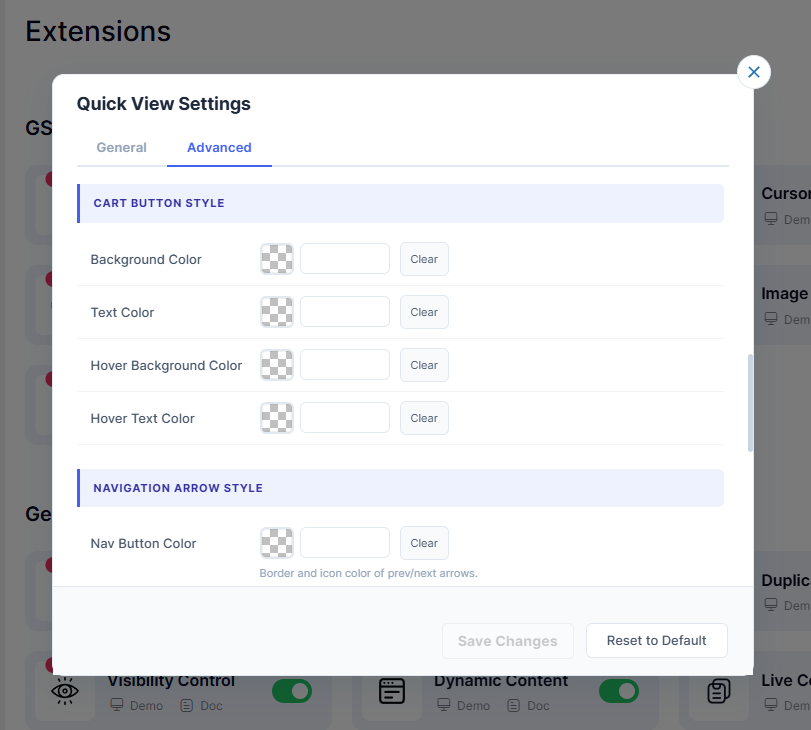
3. Cart Button Style
- 3.1 – Background ColorBackground color of the Add to Cart button in popup.
- 3.2 – Text ColorLabel text color of the Add to Cart button.
- 3.3 – Hover Background ColorBackground color when hovering over the cart button.
- 3.4 – Hover Text ColorText color when hovering over the cart button.
4. Navigation Arrow Style
- 4.1 – Nav Button ColorBorder and icon color of the prev/next slider arrows.
- 4.2 – Nav Hover BackgroundBackground color of navigation arrows on hover.
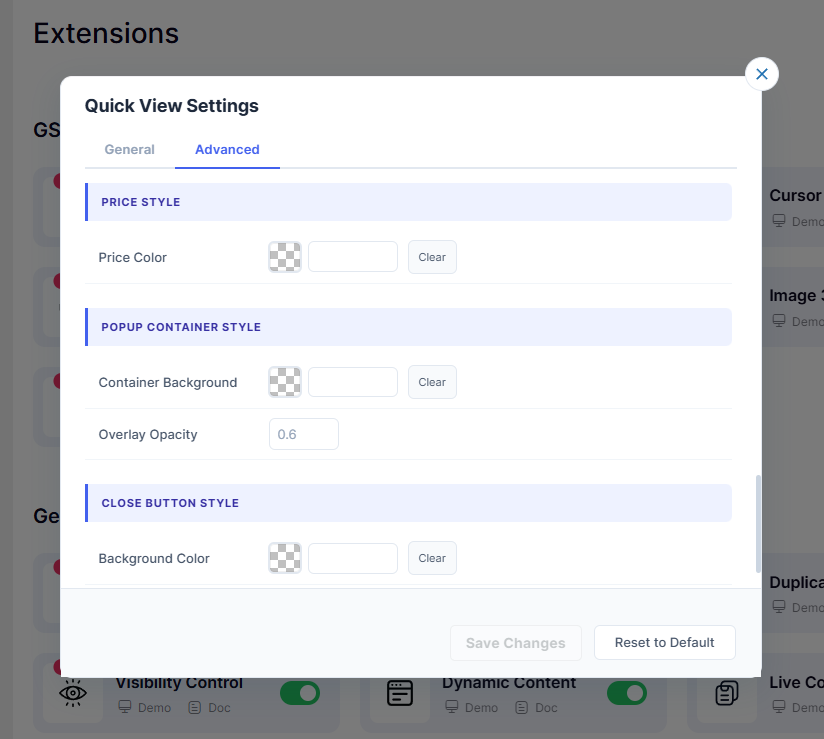
5. Price Style
- 5.1 – Price ColorColor of the product price displayed in the popup.
6. Popup Container Style
- 6.1 – Container BackgroundBackground color of the Quick View popup container.
- 6.2 – Overlay OpacityDarkness of the background overlay behind the popup. Default:
0.6
7. Close Button Style
- 7.1 – Background ColorBackground color of the popup close button.
- 7.2 – Text ColorIcon or text color of the popup close button.
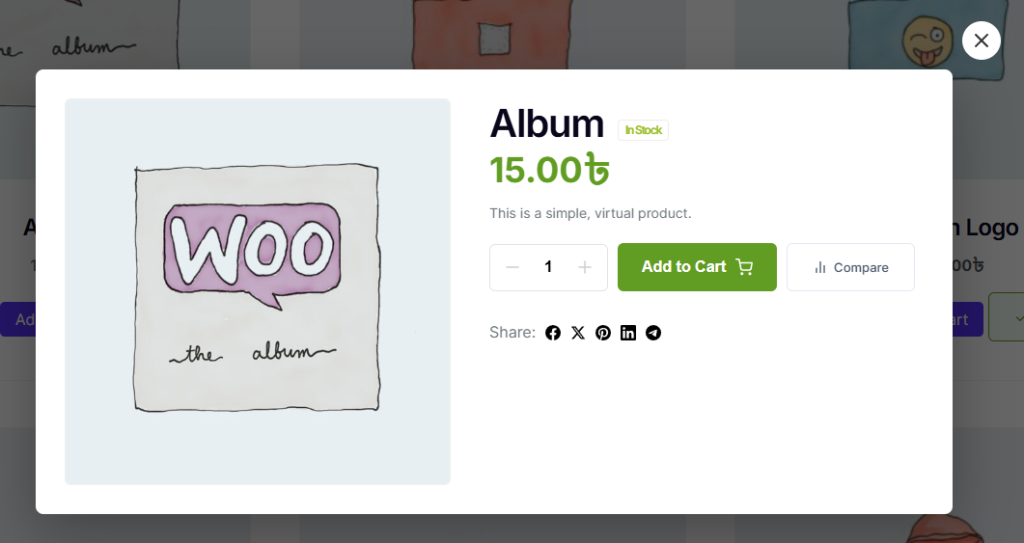
Front End of Quick view product
Clear view of the Quick view Popup box
Use this method to display Quick View with a specific product ID.

<?php echo do_shortcode('[easyel_quick_view product_id="123"]'); ?>

Use this inside WooCommerce loops to automatically get the product ID.

<?php
\EasyElements_Elementor\Pro\Extension\QuickView\Includes\QuickviewFrontend::render_quick_view_button_loop();
?>


