



This powerful module helps customers compare multiple products side by side, making it easier to choose the best option for their needs.
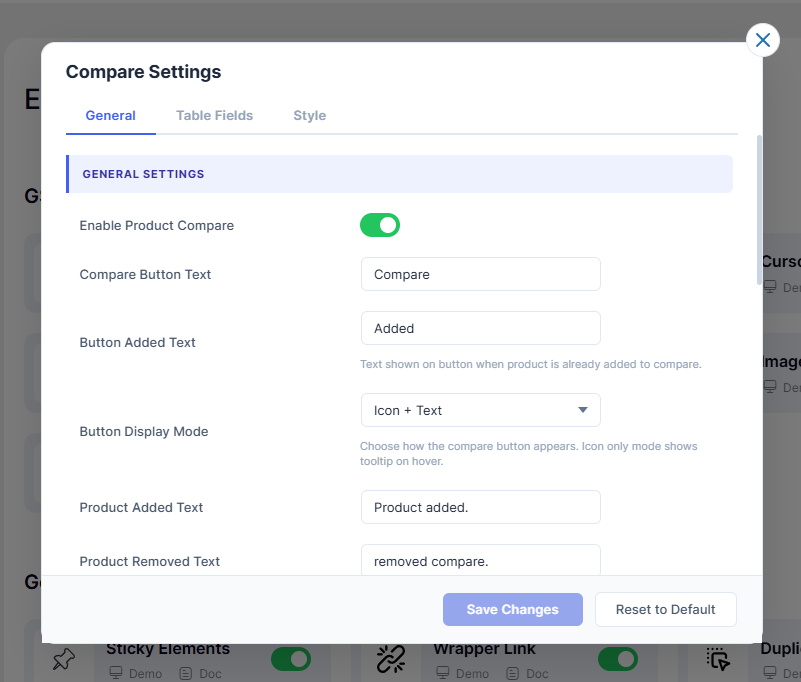
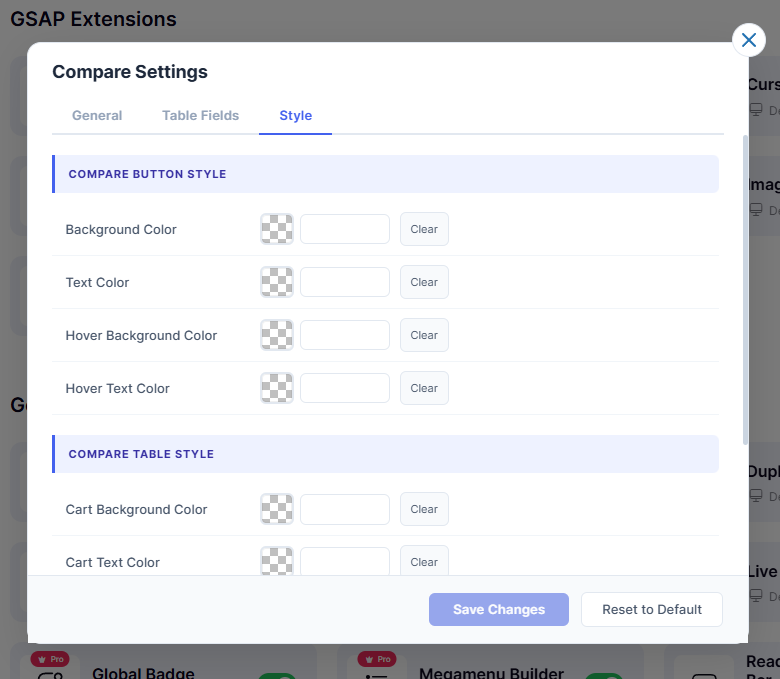
Compare feature has three tabs: General, Table Fields, and Style.
1. General Settings
- 1.1 – Enable Product Compare: Toggles the entire Compare feature on or off site wide.
- 1.2 – Compare Button Text: Label shown on the Compare button. Default:
Compare - 1.3 – Button Added Text: Text shown on button when product is already added. Default:
Added - 1.4 – Button Display Mode: Choose button appearance: Icon + Text, Text Only, or Icon Only.
- 1.5 – Product Added Text: Notification text when a product is added to compare.
- 1.6 – Product Removed Text: Notification text when a product is removed from compare.
- 1.7 – Browse Compare Text: Label for the link that opens the Compare page.
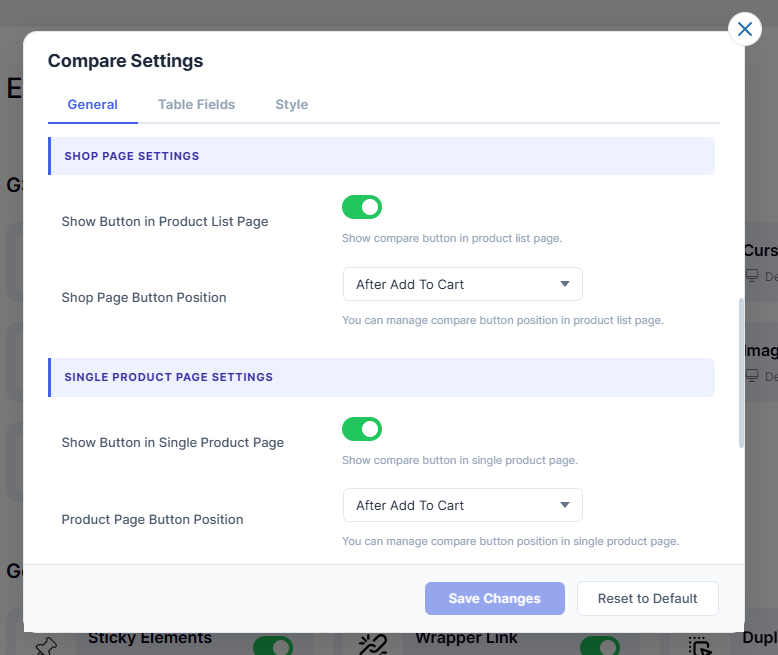
2. Shop Page Settings
- 2.1 – Show Button in Product List Page: Shows or hides Compare button on the Shop/archive page.
- 2.2 – Shop Page Button Position: Set where the Compare button appears on product list page.
- 2.3 – Shortcode (Use Shortcode mode): Use
to place the button manually. - 2.4 – Enter Hook Name: Enter a WooCommerce hook name for custom button placement.
- 2.5 – Hook Priority: Set the hook execution priority. Default:
10
3. Single Product Page Settings
- 3.1 – Show Button in Single Product Page: Shows or hides Compare button on the single product page.
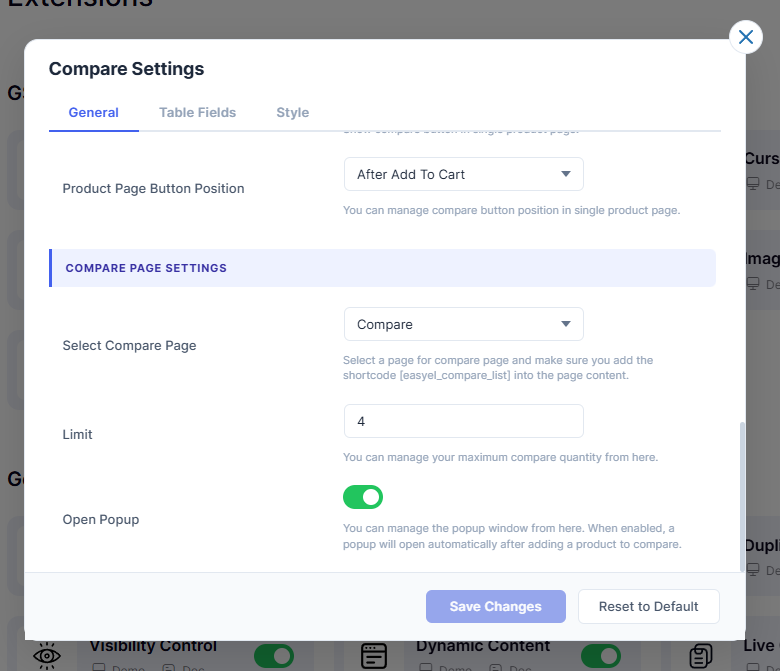
- 3.2 – Product Page Button Position: Set where the Compare button appears on the product page.
- 3.3 – Shortcode (Use Shortcode mode): Use
easyel_compare_buttonto place the button manually. - 3.4 – Product Hook Name: Enter a WooCommerce hook name for custom button placement.
- 3.5 – Product Hook Priority: Set the hook execution priority. Default:
10
4. Compare Page Settings
- 4.1 – Select Compare Page: Choose the page to use as the Compare page. Add shortcode
easyel_compare_listto that page. - 4.2 – Limit: Maximum number of products a user can compare at once. Default:
4 - 4.3 – Open Popup: Automatically opens a popup after a product is added to compare.
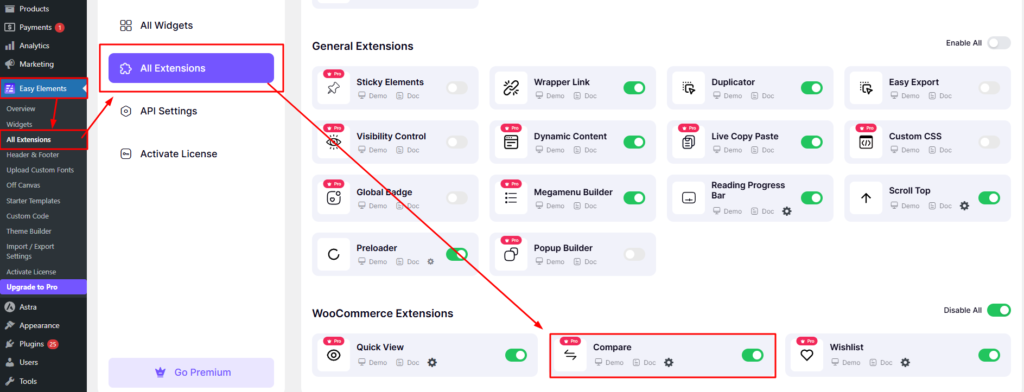
Go to Easy Elements → All Extensions → WooCommerce Extensions → Compare
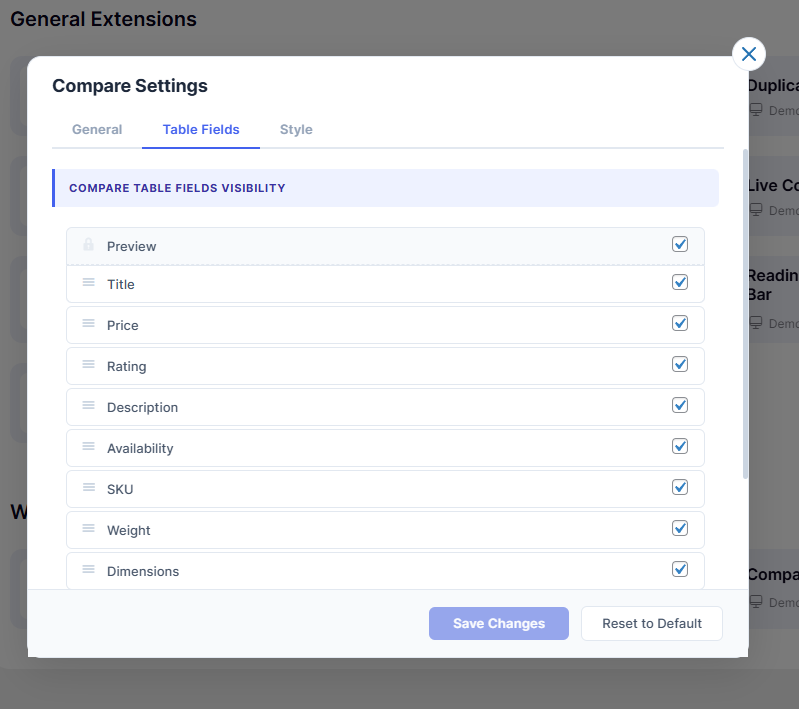
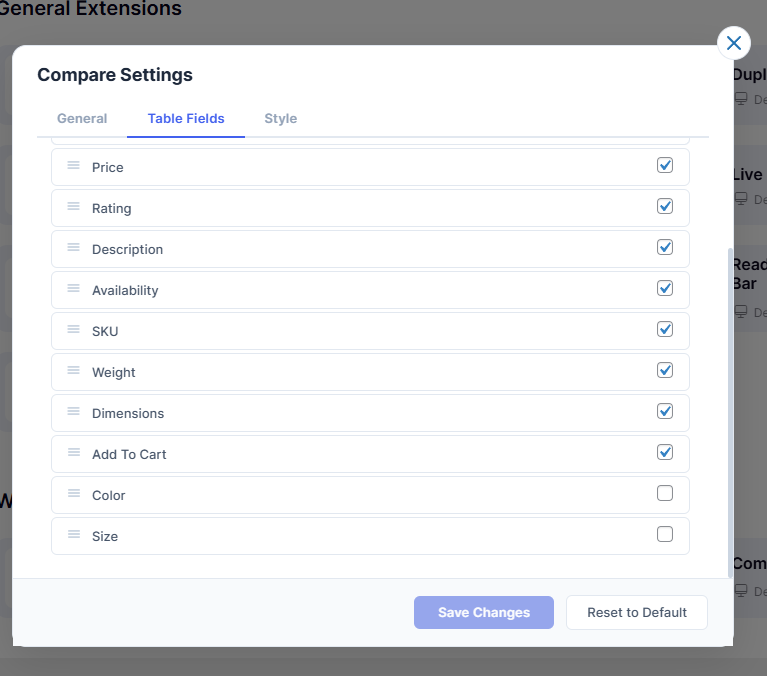
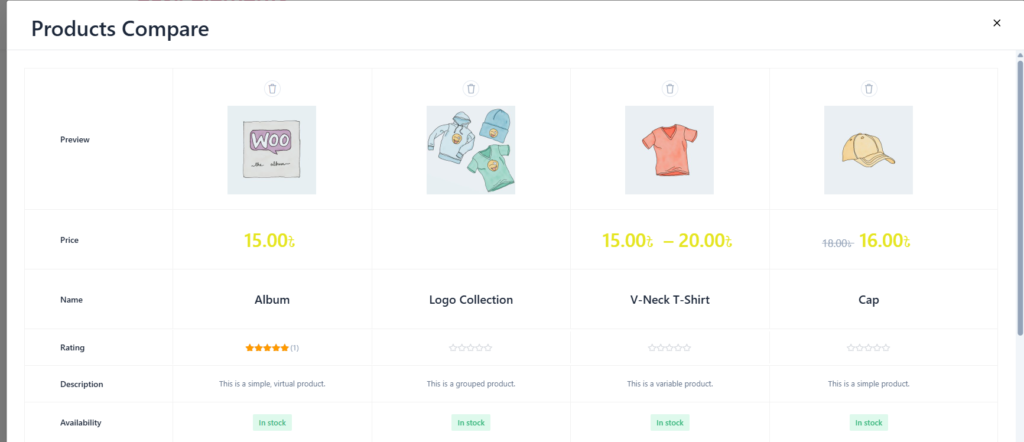
The following features will be displayed in the compare table.
You can customize the following styles in the compare table.
Front End View of Compare Product
Clear view of the compare icon and comparison table.
[easyel_compare_button] — Adds a compare button to products (supports product_id).

[easyel_compare_list] — Displays the compare table on a selected page.

[easyel_compare_count] — Shows total compared items (hide_empty="yes" to hide if empty).