
If you’ve ever opened your WordPress site and suddenly saw a completely blank white screen, you already know how scary it feels.
No error.
No warning.
Just… nothing.
As someone who has spent 10+ years working with WordPress, Elementor, and plugin development, I can tell you this:
👉 90% of the time, the issue is fixable within minutes — if you know where to look.
In this guide, I’ll walk you through real-world causes and fixes specifically for Elementor addon plugins.
What is the “White Screen of Death”?
The “White Screen of Death” (WSOD) is when your site stops rendering due to a fatal PHP error, but WordPress fails to display it.
Common trigger:
- A plugin (especially Elementor addons)
- Theme conflict
- Memory exhaustion
- Broken update
Why Elementor Addons Often Cause This
Elementor itself is stable. Problems usually come from third-party addons.
From my experience building plugins, here’s why:
1. PHP Fatal Errors
Bad code like:
- Calling undefined functions
- Wrong hooks
- Missing dependencies
2. Version Conflicts
Addon built for older Elementor version
➡️ You update Elementor
➡️ Boom — white screen
3. Memory Limit Exceeded
Heavy widgets + animations + queries
Server runs out of memory
4. Improper Hook Usage
Example:
- Using Elementor hooks before Elementor loads
Step-by-Step Fix (Pro Developer Workflow)
Follow these steps in order — this is exactly how I debug client sites.
Step 1: Disable the Addon Plugin
Access your site via:
- cPanel File Manager OR FTP
Go to:
/wp-content/plugins/
Rename the plugin folder:
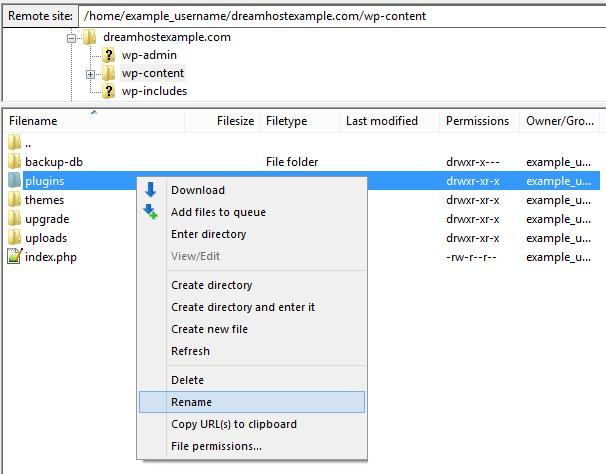
elementor-addon → elementor-addon-disabled
👉 If your site loads again → confirmed plugin issue
Step 2: Enable Debug Mode
Edit your wp-config.php:
define('WP_DEBUG', true);
define('WP_DEBUG_LOG', true);
define('WP_DEBUG_DISPLAY', true);
Reload your site.
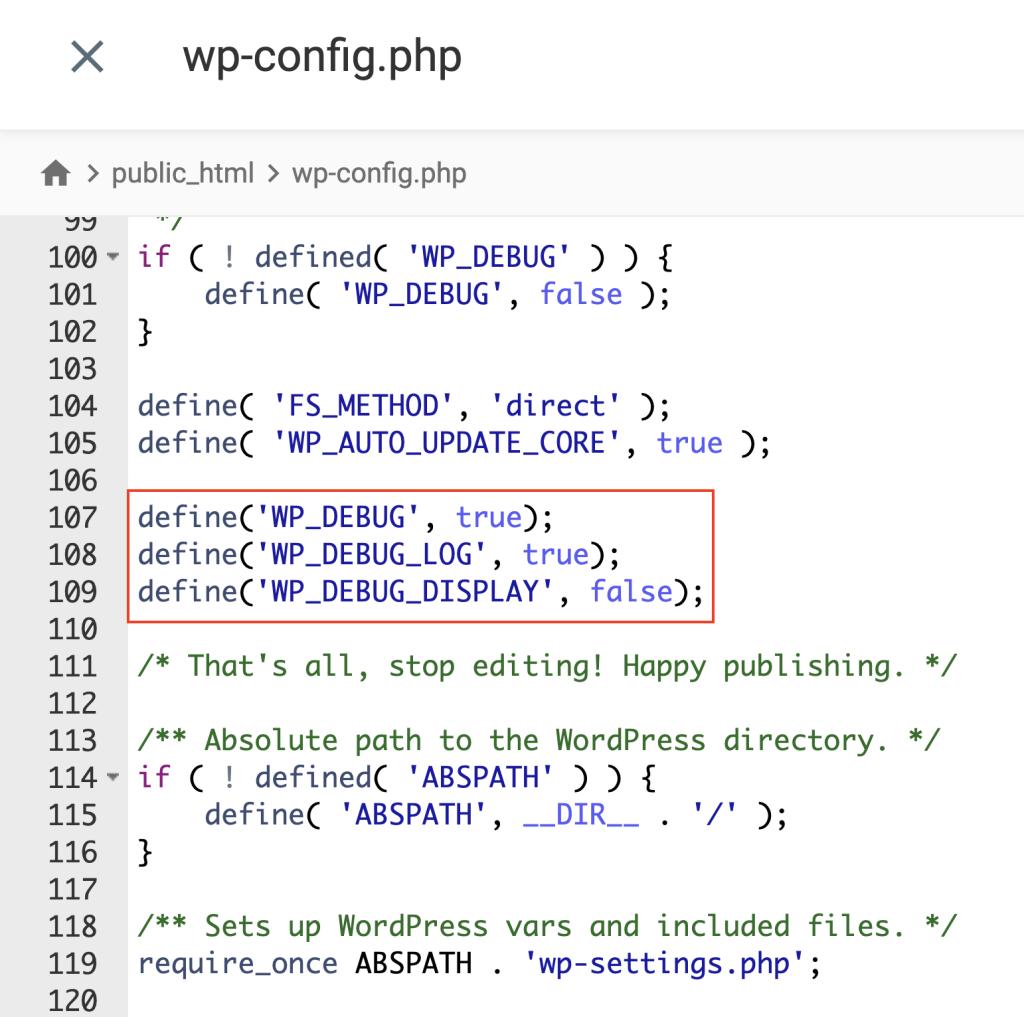
Now you’ll see the actual error message.
Step 3: Check Debug Log
Go to:
/wp-content/debug.log
Look for:
- Fatal errors
- Missing classes
- Deprecated functions
Step 4: Increase Memory Limit
Add in wp-config.php:
define('WP_MEMORY_LIMIT', '256M');
👉 Elementor-heavy sites often need more memory
Step 5: Check Elementor Compatibility
Make sure:
- Elementor is updated
- Addon plugin supports current version
If not:
👉 Roll back Elementor version OR update addon
Step 6: Safe Mode Test
Elementor has Safe Mode.
Go to:
- Elementor → Tools → Safe Mode
This disables conflicts temporarily.
Step 7: Conflict Testing
Activate plugins one by one:
- Activate Elementor only
- Then addon
- Then others
👉 This isolates the exact conflict
Real Developer Tip (Important)
From my plugin development experience:
Most Elementor addon crashes come from loading code too early
Example mistake:
add_action('init', 'load_widget');
Correct approach:
add_action('elementor/widgets/register', 'load_widget');
👉 Timing matters A LOT
Prevention Tips (Don’t Skip This)
✔ Always Test Updates
Use staging site before updating
✔ Choose Quality Addons
Avoid low-quality plugins
✔ Keep Code Clean (For Developers)
- Check dependencies
- Use proper hooks
- Follow Elementor API
✔ Limit Too Many Addons
More plugins = more conflicts
Bonus: If You’re a Plugin Developer
If you’re building Elementor addons (like your own products), ensure:
- Proper version checks:
if ( did_action( 'elementor/loaded' ) ) {
   // load code
}
- Graceful fallback if Elementor not active
- No direct function calls before load
Final Thoughts: Elementor Addon Plugin Causing White Screen
White screen issues feel stressful, but they’re usually not complex.
In most cases:
👉 It’s just one plugin causing a fatal error
Once you:
- Enable debug
- Identify the issue
- Fix or disable the addon
Your site will be back in minutes.