

Elementor has changed the way people build WordPress websites. With its drag-and-drop editor, anyone can create professional-looking pages without writing a single line of code.
But while designing pages feels simple, configuring Elementor correctly is where many users make mistakes.
Most Elementor users focus on widgets, sections, colors, and layouts while ignoring the settings that impact website performance, responsiveness, design consistency, and overall workflow.
A wrong global setting, unnecessary feature activation, or incorrect responsive configuration can create problems that are difficult to identify later. Your website may load slower, look inconsistent across devices, or become harder to maintain as it grows.
The tricky part is that many Elementor settings seem harmless. They are hidden inside different menus, and beginners often configure them based on guesswork instead of understanding what each option actually does.
In this guide, we’ll explore the Elementor settings that many users configure incorrectly and explain how to optimize them for a faster, cleaner, and more efficient WordPress website.
Whether you are a beginner, freelancer, agency owner, or website designer managing multiple projects, these settings can help you get better results from Elementor.
Elementor Settings Almost Everyone Gets Wrong
1. Ignoring Elementor Global Settings
One of the most common Elementor mistakes is starting website design without configuring global settings first.
Many users manually customize colors, fonts, and button styles inside individual widgets. While this works for small websites, it creates maintenance problems as the website grows.
For example, changing a brand color across dozens of pages manually can take hours and often leads to inconsistent designs.
Elementor’s global settings allow you to create a unified design system.
Configure Global Colors Properly
Elementor allows you to define:
- Primary colors
- Secondary colors
- Text colors
- Accent colors
- Background colors
Instead of choosing colors separately for every widget, set your brand colors once and reuse them throughout your website.
Set Global Fonts Before Designing Pages
Typography mistakes are common in Elementor websites.
Many users select different fonts and sizes for every section, which creates inconsistency.
A better approach is creating a typography system:
- One font for headings
- One font for body text
- Limited font weights
- Consistent heading sizes
You can manage these settings from:
Elementor → Site Settings → Global Fonts
2. Loading Too Many Fonts
Why Excessive Fonts Hurt Performance
Typography improves website appearance, but adding too many font variations can slow down your website.
A common mistake is loading multiple versions of the same font:
- Regular
- Medium
- Semi-bold
- Bold
- Extra bold
- Italic
Every font file adds additional requests that browsers need to process.
How to Optimize Elementor Fonts
A better approach is using a limited typography system.
Most websites only need:
- One heading font
- One body font
- Two or three font weights
This improves:
- Page speed
- Design consistency
- User experience
3. Incorrect Responsive Settings
Why Elementor Designs Break on Mobile
Many users assume Elementor automatically creates a perfect mobile version of their website.
However, desktop designs often need additional adjustments for smaller screens.
Common responsive mistakes include:
- Large desktop font sizes on mobile
- Excessive padding
- Fixed width elements
- Hidden content issues
- Poor spacing adjustments
Use Elementor Responsive Controls
Elementor allows separate settings for:
- Desktop
- Tablet
- Mobile
You can adjust:
- Font size
- Padding
- Margin
- Alignment
- Column structure
Always check your design using Elementor’s responsive preview before publishing.
A website that looks perfect on desktop can still provide a poor experience on mobile.
4. Enabling Too Many Elementor Features
Why More Features Are Not Always Better
Elementor regularly introduces new features and experimental options.
Many users enable every available feature without understanding whether they actually need them.
This can create:
- Compatibility issues
- Unnecessary complexity
- Performance problems
Enable Only Necessary Elementor Features
Go to:
Elementor → Settings → Features
Review available options and activate only the features that support your workflow.
A cleaner Elementor setup usually results in:
- Better stability
- Easier troubleshooting
- Improved performance
5. Incorrect CSS Print Method Configuration
Understanding Elementor CSS Loading
Elementor generates CSS files to improve website performance.
However, incorrect CSS settings can sometimes cause styling problems.
The CSS Print Method controls how Elementor loads styles.
You can find this setting under:
Elementor → Settings → Advanced
External File vs Internal Embedding
The external file method is generally recommended because:
- Browsers can cache files
- Pages load more efficiently
- CSS remains organized
However, if you experience styling issues after updates or migrations, checking this setting can help solve the problem.
6. Misconfiguring Elementor Experiments
What Are Elementor Experiments?
Elementor Experiments allow users to test upcoming features before they become standard.
They can improve performance and workflow, but they should be enabled carefully.
Avoid Enabling Every Experiment
Before activating an experimental feature, check:
- What does it improve?
- Is it stable?
- Does it affect existing designs?
- Are your plugins compatible?
For production websites, stability should always come before testing new features.
7. Ignoring Custom Breakpoints
Why Default Breakpoints May Not Work Everywhere
Elementor provides default responsive breakpoints, but every website has different requirements.
A business website, online store, or SaaS website may have different visitor behaviors.
Customize Breakpoints Based on Your Audience
For example:
A restaurant website may receive most visitors from mobile devices.
An enterprise website may have more desktop visitors.
Adjust breakpoints based on your actual users instead of relying only on default settings.
8. Using Old Sections Instead of Containers
Why Elementor Containers Matter
Elementor introduced Flexbox Containers to improve website structure and responsiveness.
However, many users still create unnecessary sections and columns.
This creates:
- More nested elements
- Harder editing
- Poor responsive control
Build New Pages With Containers
Containers provide better control over:
- Alignment
- Spacing
- Layout structure
- Mobile responsiveness
A cleaner structure makes websites easier to maintain.
9. Forgetting Elementor Maintenance Tools
Why Elementor Maintenance Tools Are Important
Many users troubleshoot Elementor problems manually without checking built-in solutions.
Elementor includes tools that can fix common issues.
Useful Elementor Maintenance Options
Go to:
Elementor → Tools
You can use:
- Regenerate CSS & Data
- Replace URLs
- Maintenance Mode
For example, regenerating CSS can solve issues after:
- Theme changes
- Plugin updates
- Website migration
10. Ignoring Elementor Role Manager
Protect Your Website From Accidental Changes
If multiple people manage your website, giving everyone full Elementor access can create problems.
Someone could accidentally change:
- Global styles
- Templates
- Important layouts
Use Elementor Role Manager
Role Manager helps control what different users can edit.
It is especially useful for:
- Agencies
- Client websites
- Team projects
11. Overusing Elementor Animations
Why Too Many Animations Hurt User Experience
Animations can make websites feel modern, but excessive effects can create a poor experience.
Too many animations can:
- Slow down pages
- Distract visitors
- Affect mobile performance
Use Animations Strategically
Good examples:
- Button hover effects
- Subtle entrance animations
- Important visual highlights
Avoid adding animations to every element on the page.
12. Ignoring Elementor Performance Settings
Optimize Elementor for Better Speed
Website speed affects user experience and SEO performance.
Elementor provides several performance-related options that many users ignore.
Review settings related to:
- CSS loading
- Asset loading
- DOM optimization
- Font loading
Remember that Elementor performance also depends on:
- Hosting quality
- WordPress theme
- Plugins
- Image optimization
- Caching setup
13. Not Disabling Default Colors and Fonts
Avoid Design Conflicts
Using Elementor alongside theme styling can sometimes create conflicts.
For example:
Your theme controls button colors.
Elementor controls button colors.
Another plugin adds additional styling.
This creates inconsistent designs.
Take Full Control of Your Design
If Elementor is your main design system, consider disabling default colors and fonts.
This gives you:
- Better styling control
- More consistency
- Fewer conflicts
Improve Your Elementor Workflow With Easy Elements Addon
Elementor gives you the foundation to build websites visually, but the right addons can take your design workflow to the next level.
Many Elementor users install multiple addons to access extra widgets, design controls, and advanced customization options. However, using too many addons can increase complexity and make website management harder.
This is where Easy Elements can help.
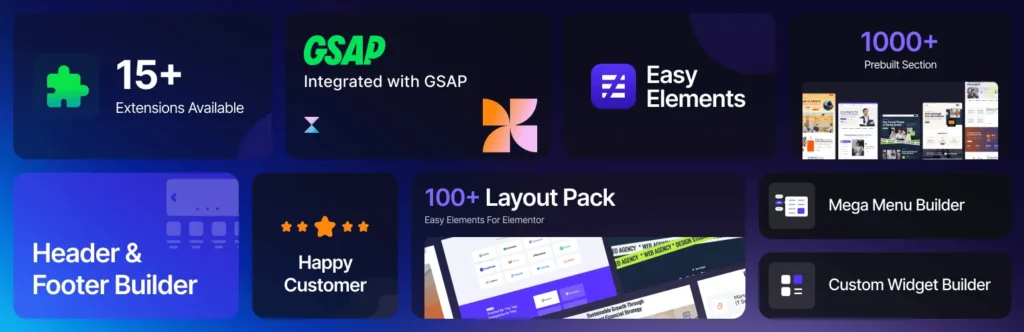
Easy Elements is an Elementor addon built to extend Elementor’s capabilities with powerful widgets and design features while keeping the website-building experience simple.
Instead of relying on multiple plugins for different design requirements, Easy Elements gives Elementor users access to additional creative tools from one lightweight addon.
Why Elementor Users Choose Easy Elements
With Easy Elements, you can enhance your Elementor workflow with:
- More advanced Elementor widgets
- Flexible design controls
- Ready-to-use creative elements
- Faster page-building workflow
- Better customization options without coding
Whether you are creating landing pages, business websites, portfolios, or WooCommerce stores, having the right Elementor addon can save time and reduce repetitive design work.
Build Better Elementor Websites With Fewer Limitations
Elementor is already a powerful page builder, but sometimes users need more flexibility than the default widgets provide.
Easy Elements bridges that gap by adding more design possibilities while keeping everything inside the familiar Elementor editor.
Instead of switching between multiple tools, designers can build more engaging pages directly inside Elementor.
If you want to get more out of Elementor and create professional websites faster, Easy Elements is worth exploring.
Final Thoughts
Elementor makes website creation simple, but professional results require proper configuration.
The settings behind the editor are just as important as the design itself.
Many Elementor issues are not caused by the builder. They happen because important settings are ignored or configured incorrectly.
By optimizing global settings, fonts, responsive controls, containers, performance options, and maintenance tools, you can create faster and more scalable WordPress websites.
A great Elementor website is not only about beautiful design. It is about building a strong foundation that performs well for users and remains easy to manage over time.
Frequently Asked Questions (FAQs)
What are the most important Elementor settings to configure?
The most important Elementor settings include global colors, global fonts, responsive settings, performance options, CSS loading methods, and feature controls. Configuring these settings correctly helps maintain design consistency, improve website speed, and create a better editing experience.
Should I disable Elementor default colors and fonts?
Yes, if you are managing your website design entirely through Elementor, disabling default colors and fonts can help prevent conflicts between Elementor and your WordPress theme. It gives you better control over typography, colors, and overall branding.
How can I improve Elementor website speed?
You can improve Elementor performance by optimizing images, reducing unnecessary plugins, limiting custom fonts, enabling performance-related settings, using a quality hosting provider, and avoiding excessive animations or heavy widgets.
Using a lightweight Elementor addon like Easy Elements can also help reduce the need for installing multiple separate plugins for additional design features.
Are Elementor Experiments safe to enable?
Not every Elementor Experiment should be enabled immediately. Some experimental features are stable, while others may still cause compatibility issues. Always test new features on a staging website before applying them to a live website.
Why does my Elementor website look different on mobile?
Elementor designs often require separate mobile adjustments. Desktop layouts, font sizes, spacing, and section widths may not automatically translate perfectly to smaller screens. Use Elementor’s responsive editing controls to optimize your website for tablets and mobile devices.
What is the best way to manage Elementor fonts?
The best approach is to use a simple typography system with limited font families and weights. Most websites only need one heading font, one body font, and a few font variations to maintain performance and visual consistency.
Should I use Elementor Containers instead of Sections?
Yes, for new projects, Elementor Containers are generally recommended because they provide better flexibility, responsive control, and cleaner page structures. They help reduce unnecessary nesting and make websites easier to manage.
Why are my Elementor styles not loading correctly?
Elementor styling issues can happen because of caching conflicts, outdated CSS files, theme conflicts, or plugin compatibility problems. Try regenerating Elementor CSS files from Elementor Tools, clearing website cache, and checking your CSS Print Method settings.
Do I need Elementor addons for better website design?
Elementor already provides many useful widgets, but addons can extend its capabilities with additional widgets, templates, and design options. Tools like Easy Elements can help Elementor users create more advanced layouts without adding multiple separate plugins.
How many Elementor addons should I install?
You should install only the addons you actually need. Too many Elementor addons can increase website complexity, create compatibility issues, and affect performance. Choose lightweight and reliable addons that provide the features missing from Elementor.
How often should I review Elementor settings?
It is a good practice to review Elementor settings whenever you redesign your website, install major updates, change themes, or add new plugins. Regular reviews help prevent performance issues and maintain a consistent website experience.
Can incorrect Elementor settings affect SEO?
Yes. Poor Elementor configurations can indirectly affect SEO by slowing down your website, creating poor mobile experiences, increasing layout shifts, or affecting Core Web Vitals. Proper optimization helps create a faster and more search-friendly website.