
Showcase your images in an elegant, interactive slider using the Image Carousel widget. It lets you display multiple images with smooth transitions, autoplay, navigation controls, and fully customizable layouts. Perfect for portfolios, galleries, testimonials, or brand showcases—create a visually engaging experience that captures attention effortlessly.
How to Use Advance Image Widget of Easy Elements Pro
Step 1:
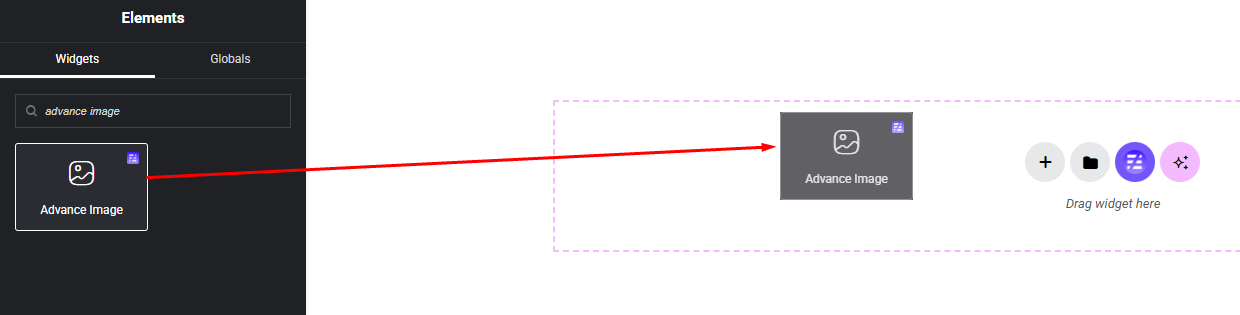
Add Advance Image Widget:
Select the Advance Image widget from the left panel, then drag and drop it into your desired area on the canvas.
Step 2:
Advance Image Settings:
- Image Settings
- Parallax Settings
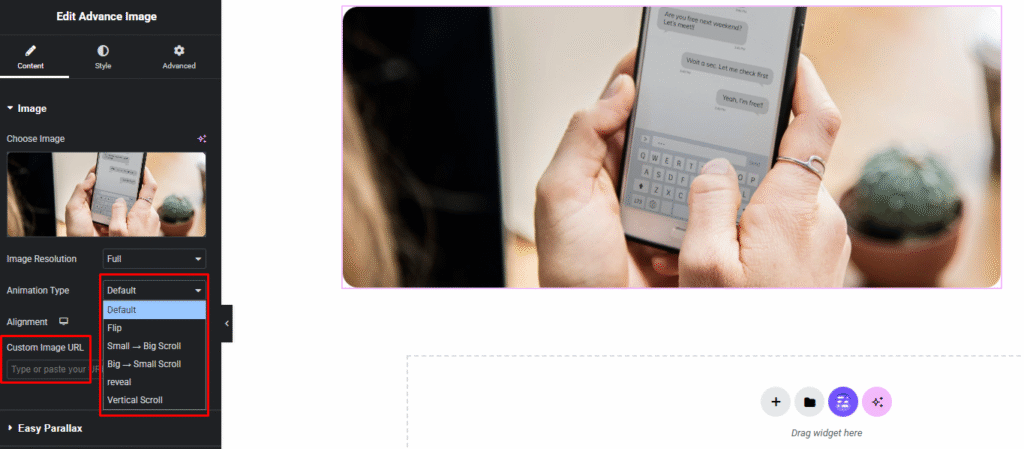
Image Settings:
- Image Select
- Animation Type
- Image Alignment
- Image URL
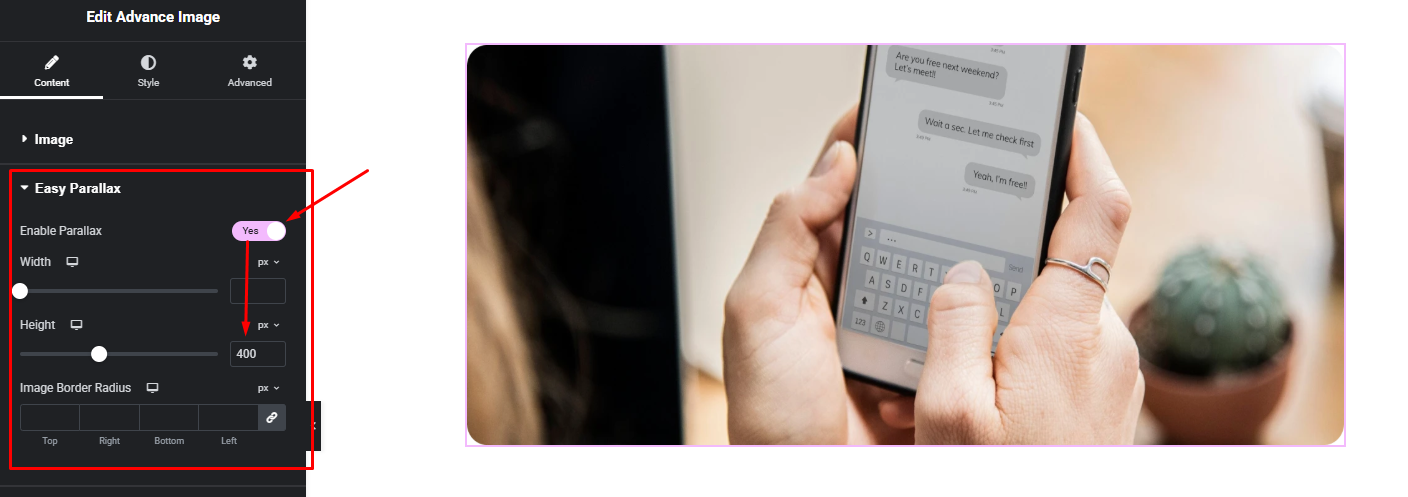
Parallax Settings:
- Image Parallax Enable/ Disable
- Parallax Image Width
- Parallax Image Height (when enable parallax, must be use image height)
- Parallax Image Border Radius
Step 3:
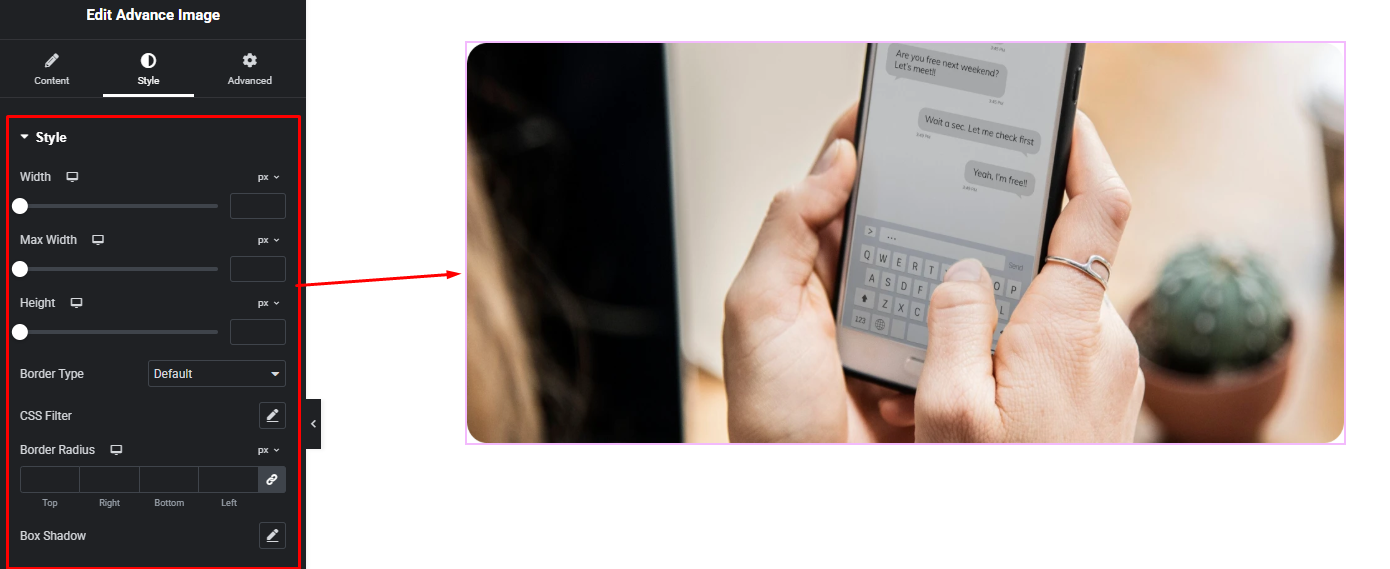
Customize Advance Image Style:
Easily customize your Advance Image widgets style — from the Style panel.