
1. General Settings
- 1.1 – Enable Wishlist: Turn on the Wishlist feature for your store. Customers will be able to save products to their wishlist.
- 1.2 – Only Logged-in Users: Enable this option if you want only registered and logged-in users to use the Wishlist feature.
- 1.3 – Button Text: Set the default text shown on the wishlist button.
Example: Add to Wishlist - 1.4 – Button Added Text: Set the button text after a product has been added to the wishlist.
Example: Remove Wishlist - 1.5 – Button Display Mode: Choose how the wishlist button will appear. Ex: Icon Only, Text / Icon + Text
- 1.6 – Product Added Text: Notification text shown after adding a product to the wishlist.
Example: Added wishlist. - 1.7 – Product Removed Text: Notification text shown after removing a product from the wishlist.
Example: Removed from wishlist. - 1.8 – Browse Wishlist Text: Text for the button or link that takes users to the wishlist page.
Example: Browse Wishlist - 1.9 – Already In Wishlist Text: Message shown when the product is already added to the wishlist.
Example: Already in wishlist
2. Shop Page Settings
- 2.1 – Show Button in Shop Page: Display the wishlist button on product listing, archive, category, and shop pages.
- 2.2 – Shop Page Button Position: Choose where the wishlist button appears on product cards. ( Ex: Top On Image, Before Product Title, After Product Title, After Add to Cart)
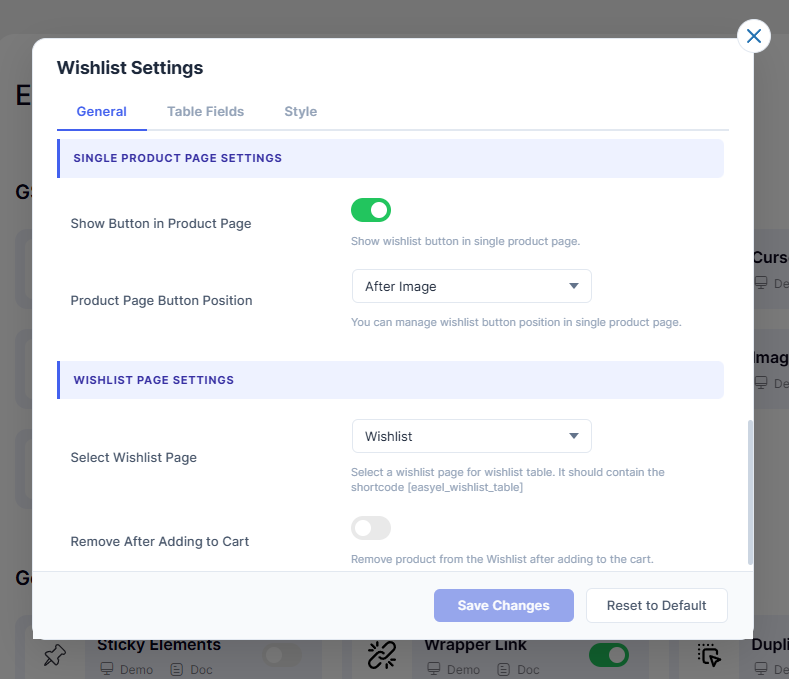
3. Single Product Page Settings
- 3.1 – Show Button in Product Page: Display the wishlist button on individual product pages.
- 3.2 – Product Page Button Position: Choose where the wishlist button appears on the single product page. ( Ex: After Image, Before Title, After Price, After Add to Cart).
4. Wishlist Page Settings
- 4.1 – Select Wishlist Page: Choose the page where users can view saved wishlist products. This page must contain the shortcode: easyel_wishlist_table
- 4.2 – Remove After Adding to Cart: Automatically remove a product from the wishlist after it has been added to the shopping cart.
Go to Easy Elements → All Extensions → WooCommerce Extensions → Wishlist
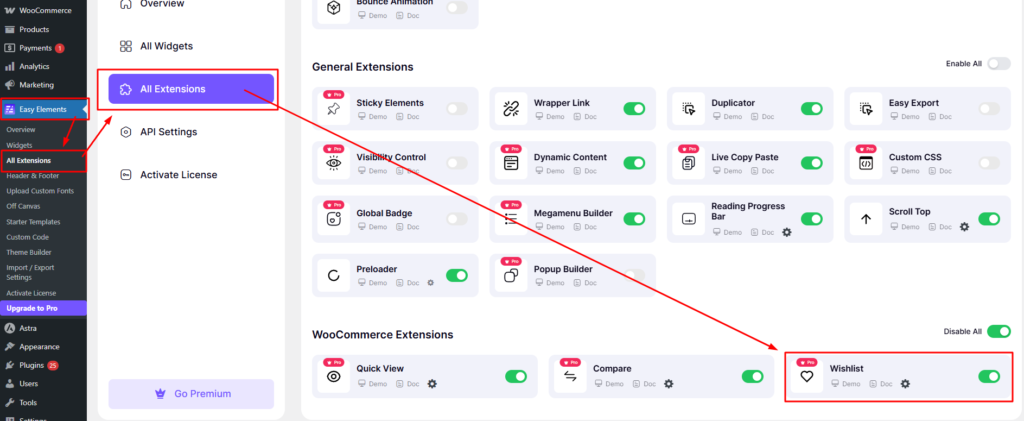
Wishlist Settings Overview-1:
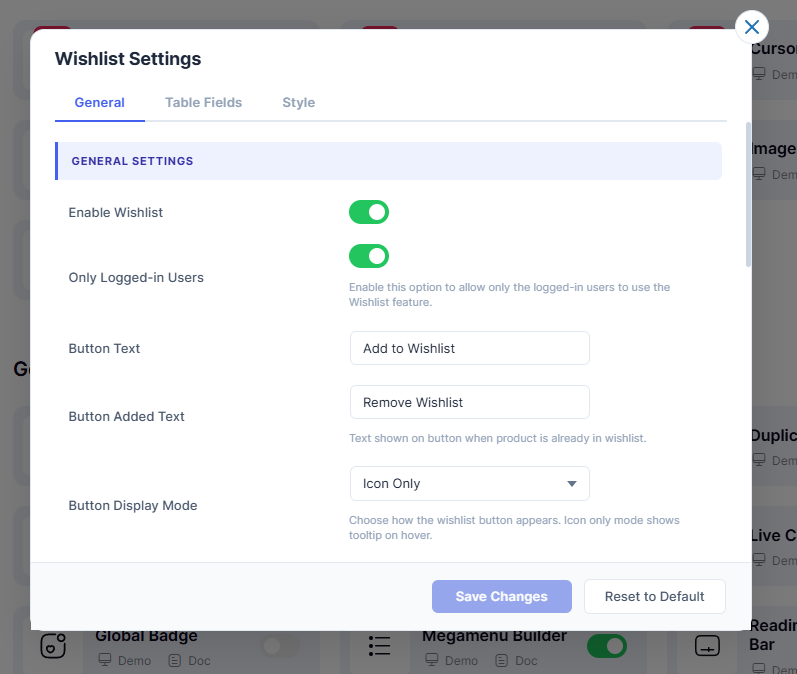
Wishlist Settings Overview-2:
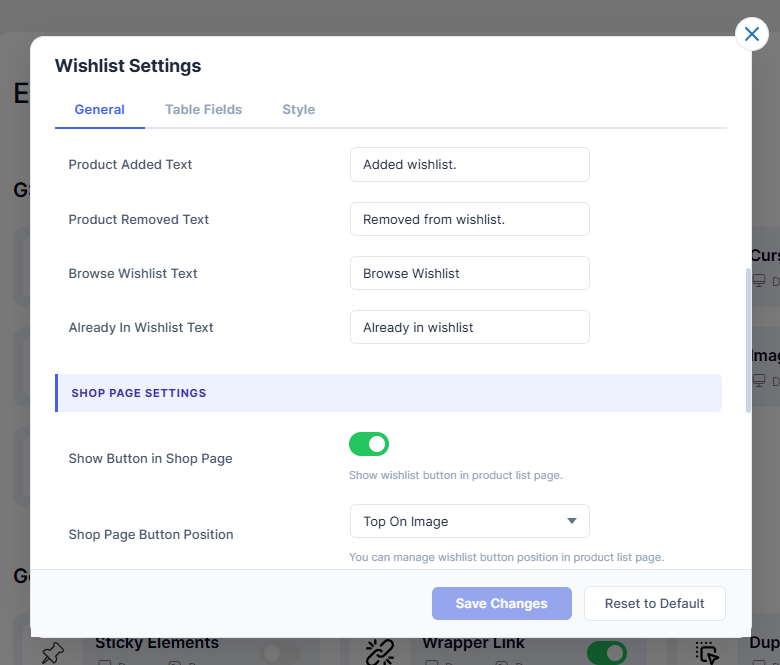
Wishlist Settings Overview-3:
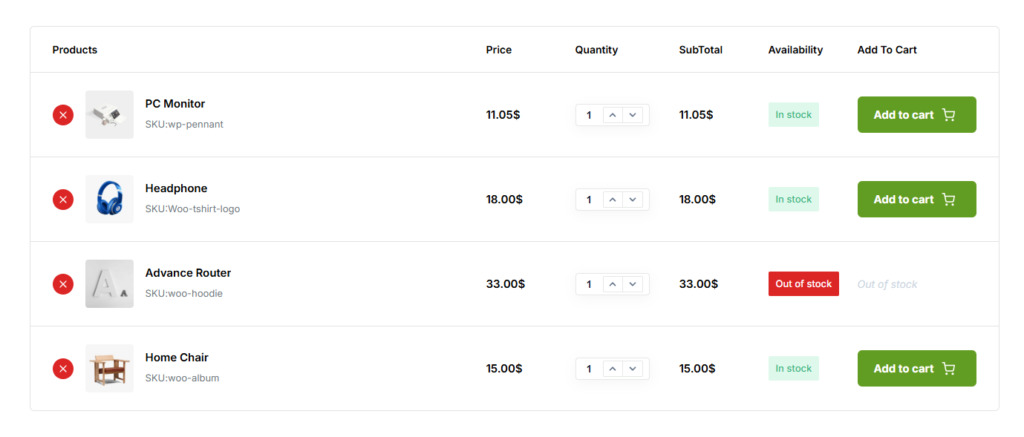
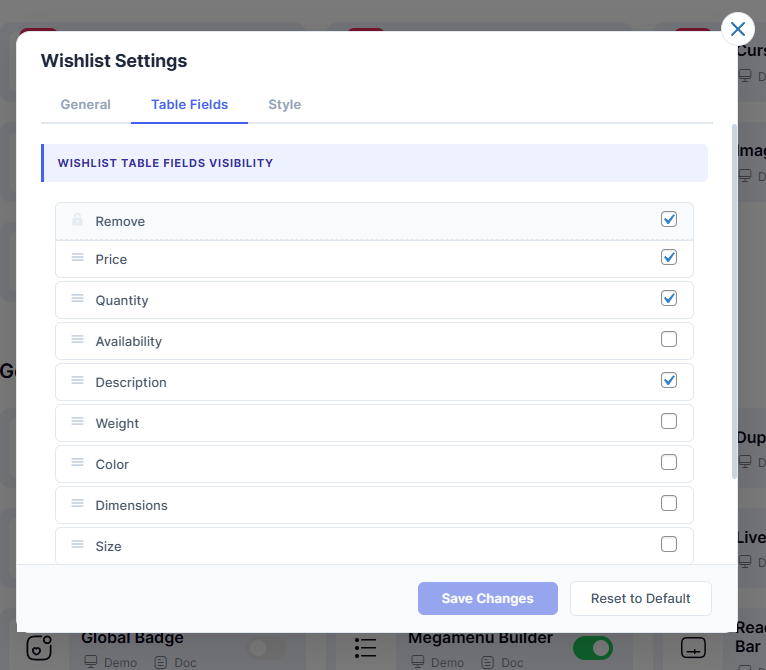
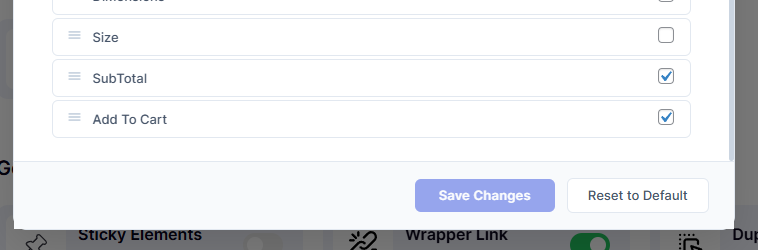
The following features will be displayed in the wishlist table.
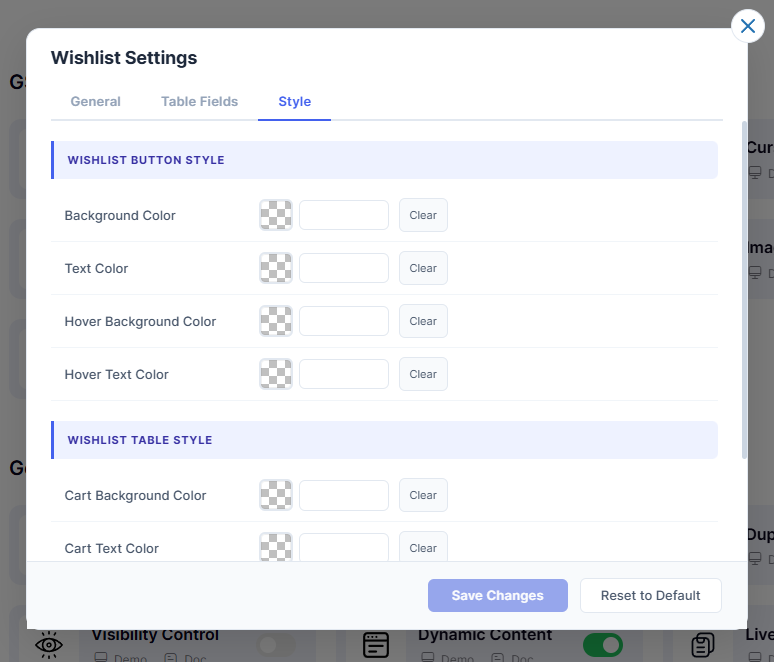
You can customize the following styles in the wishlist table.
Front End View of Wishlist Table