



Create interactive content boxes that reveal more information with a flip animation. A Flip Box lets you display one message on the front and an additional message, icon, button, or image on the back. When users hover or tap, the card smoothly flips to uncover the hidden details.
How to Use Flip Box Widget of Easy Elements Pro
Step 1:
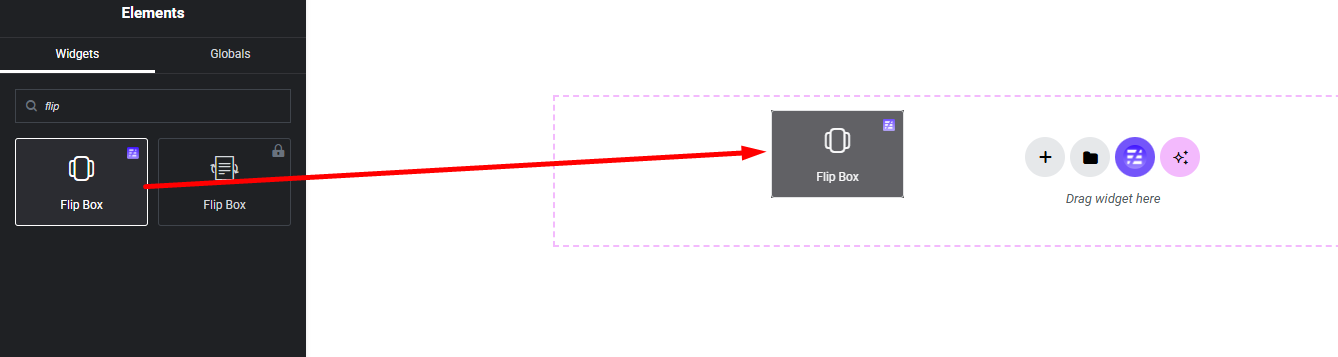
Add Flip Box Widget:
Select the Flip Box widget from the left panel, then drag and drop it into your desired area on the canvas.
Step 2:
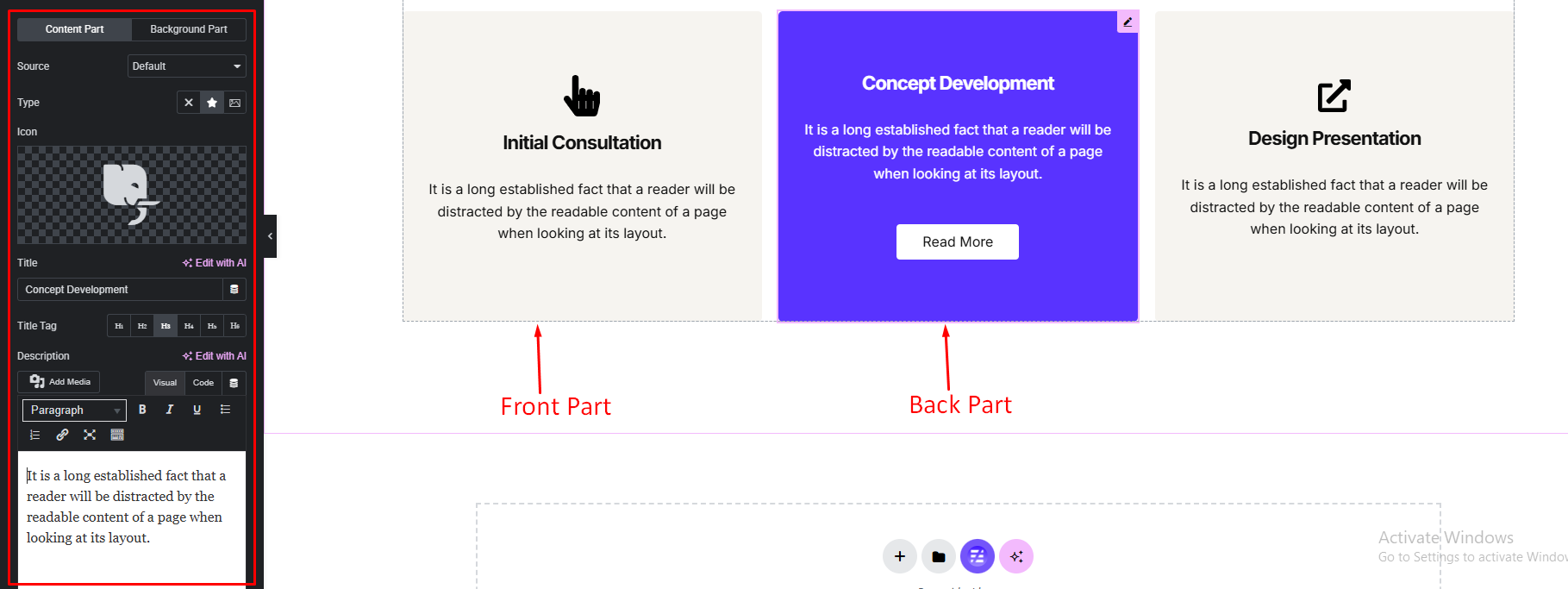
Flip Box Front Part:
- Flip Box Source
1. Default
2. Elementor Template - Box Content
- Current Item Background Color
Flip Box Back Part:
- Flip Box Source
1. Default
2. Elementor Template - Box Content
- Current Item Background Color
- Read More Button
Front & Back Part:
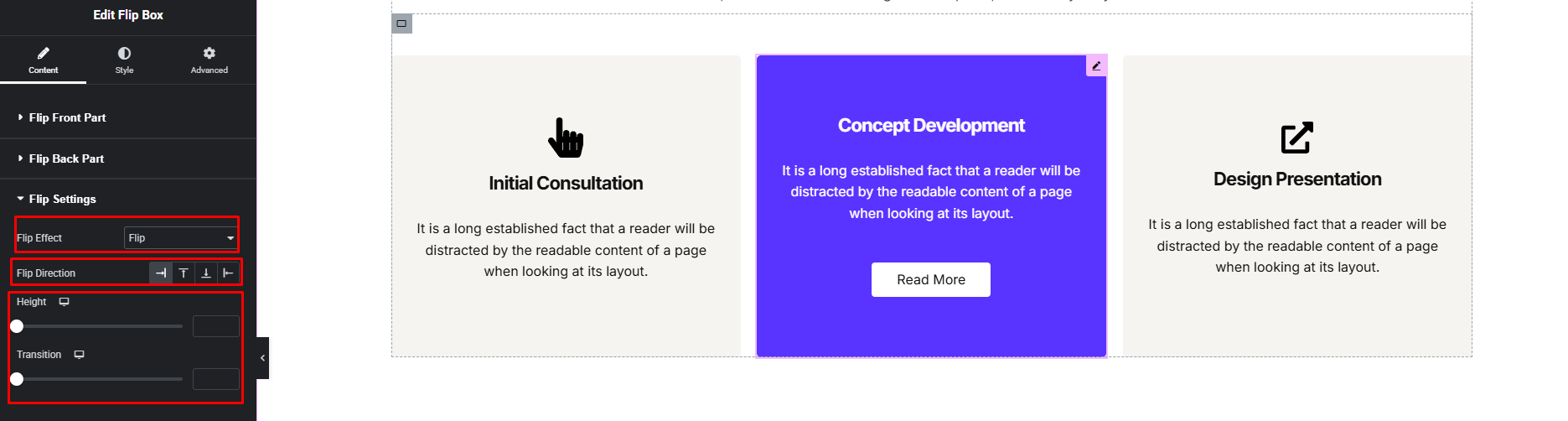
Flip Box Settings:
- Select Flip Box Effect
- Flip Box Direction
- Flip Box Height
- Flip Box Transition
Step 3:
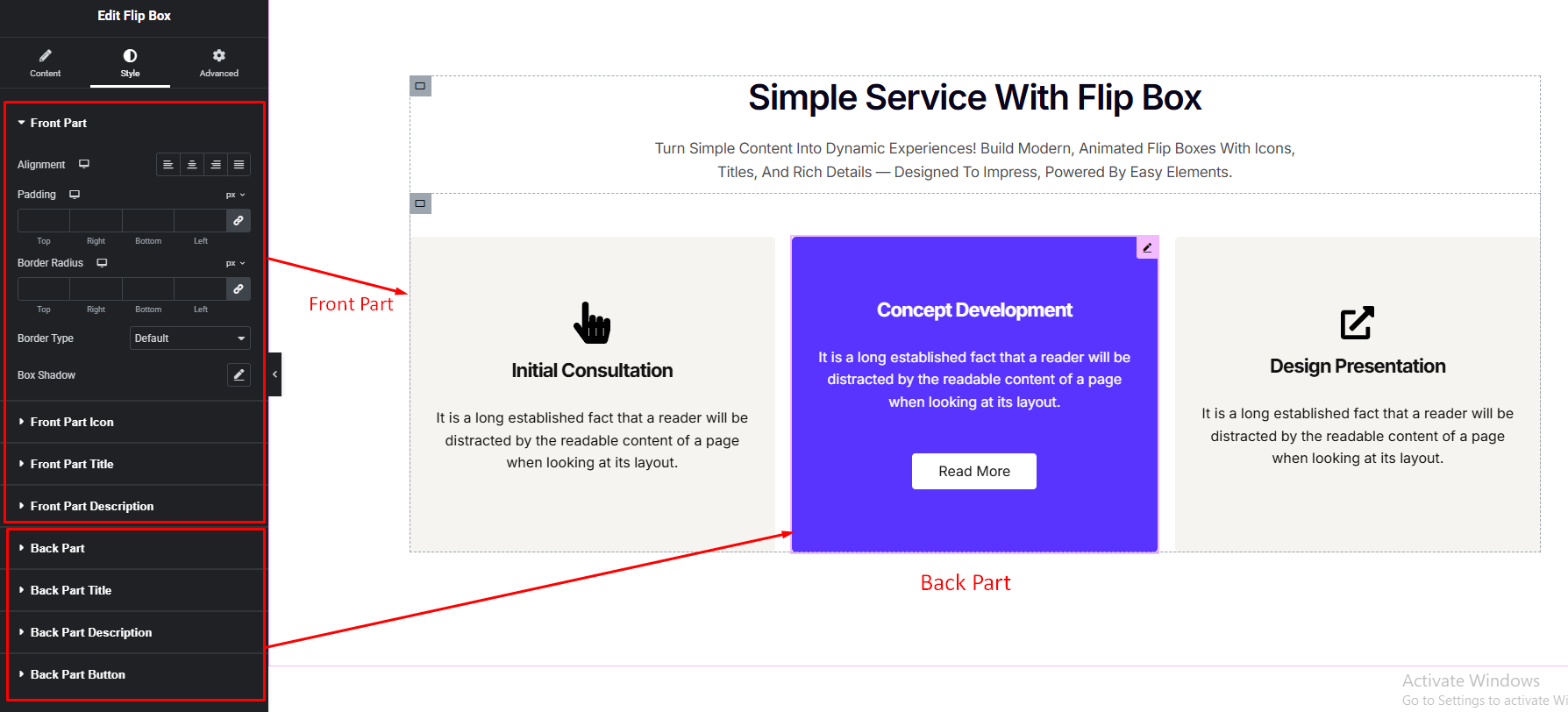
Customize Flip Box Style:
Easily customize your widgets appearance including Flip Box front & back part Style — all from the Style panel.