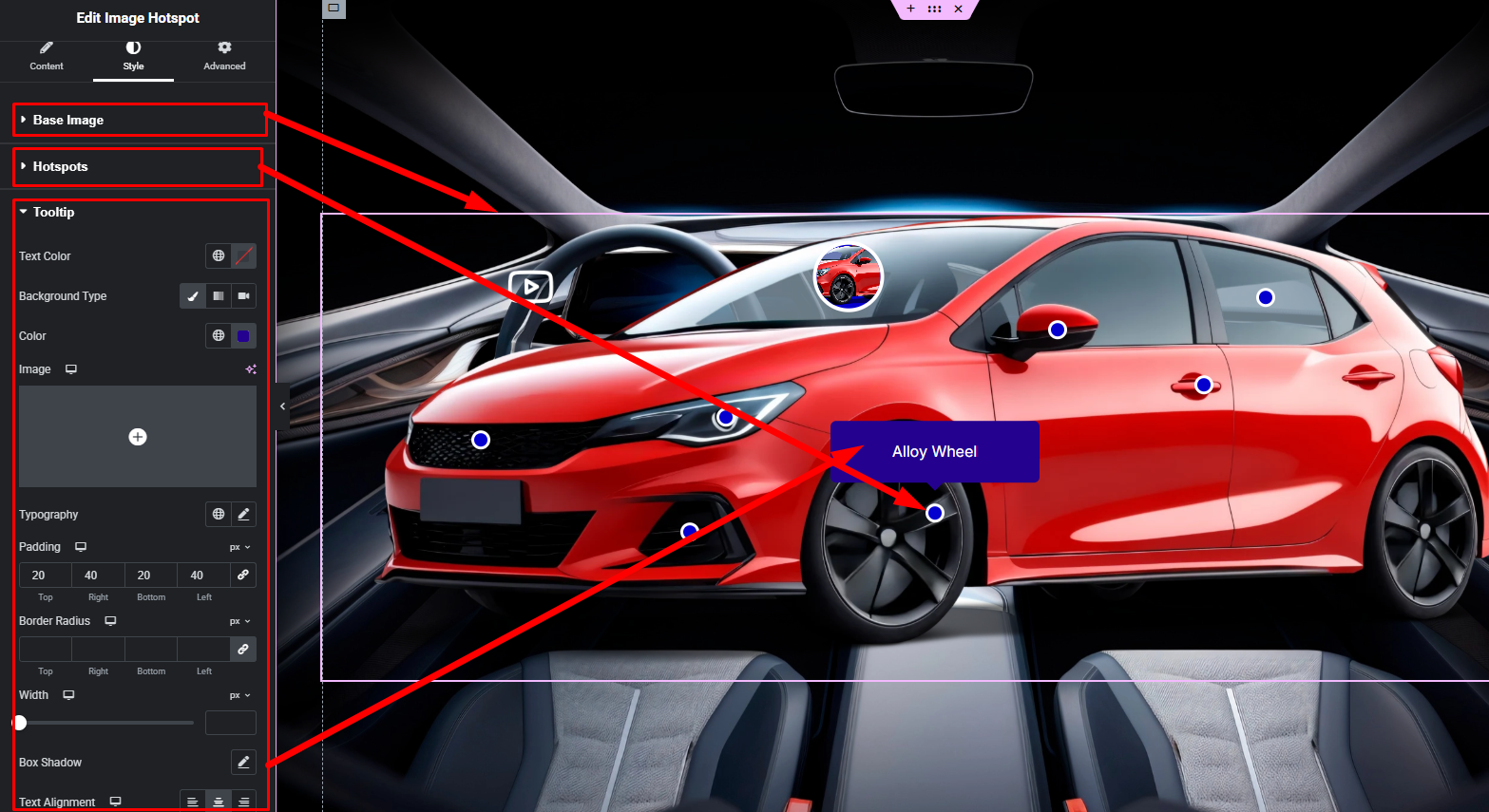

The Image Hotspot widget allows you to highlight specific areas of an image using interactive points or markers. When users hover or click on a hotspot, additional information is displayed, helping you present details in an engaging and visually clear way without cluttering the image.
How to Use Image Hotspot Widget of Easy Elements Pro
Step 1:
Add Image Hotspot Widget:
Select the Image Hotspot widget from the left panel, then drag and drop it into your desired area on the canvas.

Step 2:
Image Hotspot Settings:
- Hotspot Map Image
- Hotspot Repeater Items
Hotspot Repeater Item Fields:
- Horizontal & Vertical Both Position
- Hotspot Trigger Option (hover or click).
- Tooltip Position Options
- Tooltip Animation Style
- Hotspot Animation Style
- Hotspot Icon Type
- Current Hotspot Background, Border & Size
- Hotspot Content Type (text, image or video url)
- Content Area Width
- Content Area Padding
- Content Field

Step 3:
Customize Image Hotspot Style:
Easily customize your widgets appearance including Image Hotspot Base Image, Hotspot Icon & Hotspot Tooltip style — all from the Style panel.